Side tools
The tool rail down the left edge of the canvas, and what each button does.
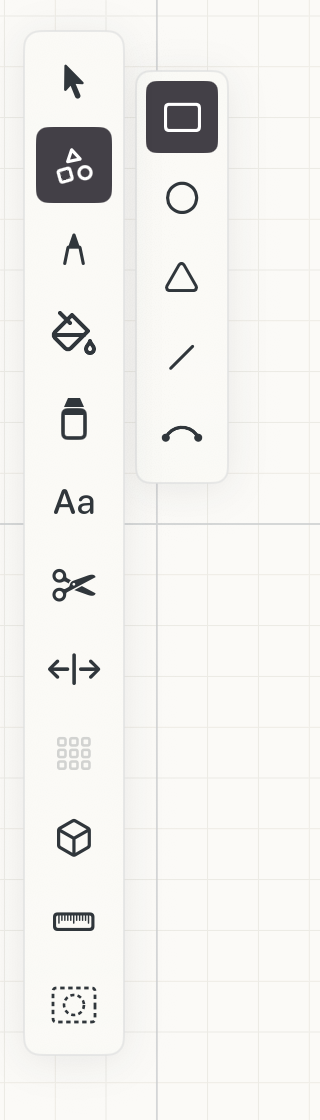
The tool rail runs down the left side of the canvas. Tap a tool to use it. Tools with options open a second column beside the rail, like the shape picker below.
Select
Pick objects to move, resize, rotate, group, or restyle. Select
Shape
Rectangles, circles, triangles, lines and arcs at exact sizes. Shapes
Pen
Freehand, smoothed or snapped strokes that stay editable. Pen
Fill
Closed areas of color for materials, zones and markup. Fill
Highlighter
See-through strokes for review notes. Highlighter
Type
Labels and notes on the drawing. Type
Trim
Removes a line back to its nearest intersections. Trim
Offset
A parallel copy at an exact distance. Offset
Clone
Repeats a selection in rows and columns. Clone array
2.5D
Stacks shapes into a quick 3D-looking view, oblique or isometric. 2.5D
Dimension
Measures distances and adds dimension lines. Measure
Guide
Construction shapes that lay out a drawing without becoming part of it. Guides
Subtools and modifiers
Some tools come in a few variations. Their subtools open in a strip beside the rail, and you pick one: Shape's rectangle, circle, triangle, line and arc, or Fill's three smoothing levels.
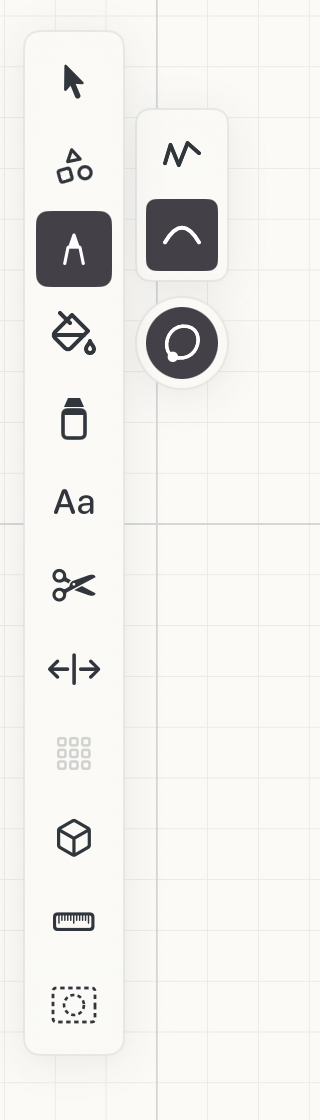
A modifier is different. It's a round button on its own under the subtools, and it switches a behaviour on or off for whichever subtool you've picked.
The Pen Tool's Close Path is an example, toggling it on/off will enabled/disable automatically drawing a line from the start of your stroke to the end.
A lit modifier stays on until you tap it again.
Subtools
Pick one. The highlighted square is the one in use.
Modifier
On or off, on top of the subtool. Filled when it's on.