Guides
Lay out centerlines, boundaries, and reference shapes without adding them to the finished drawing.
Use Guides to establish a layout before drawing finished geometry. They are useful for centerlines, clearances, repeated curves, and alternate design options.
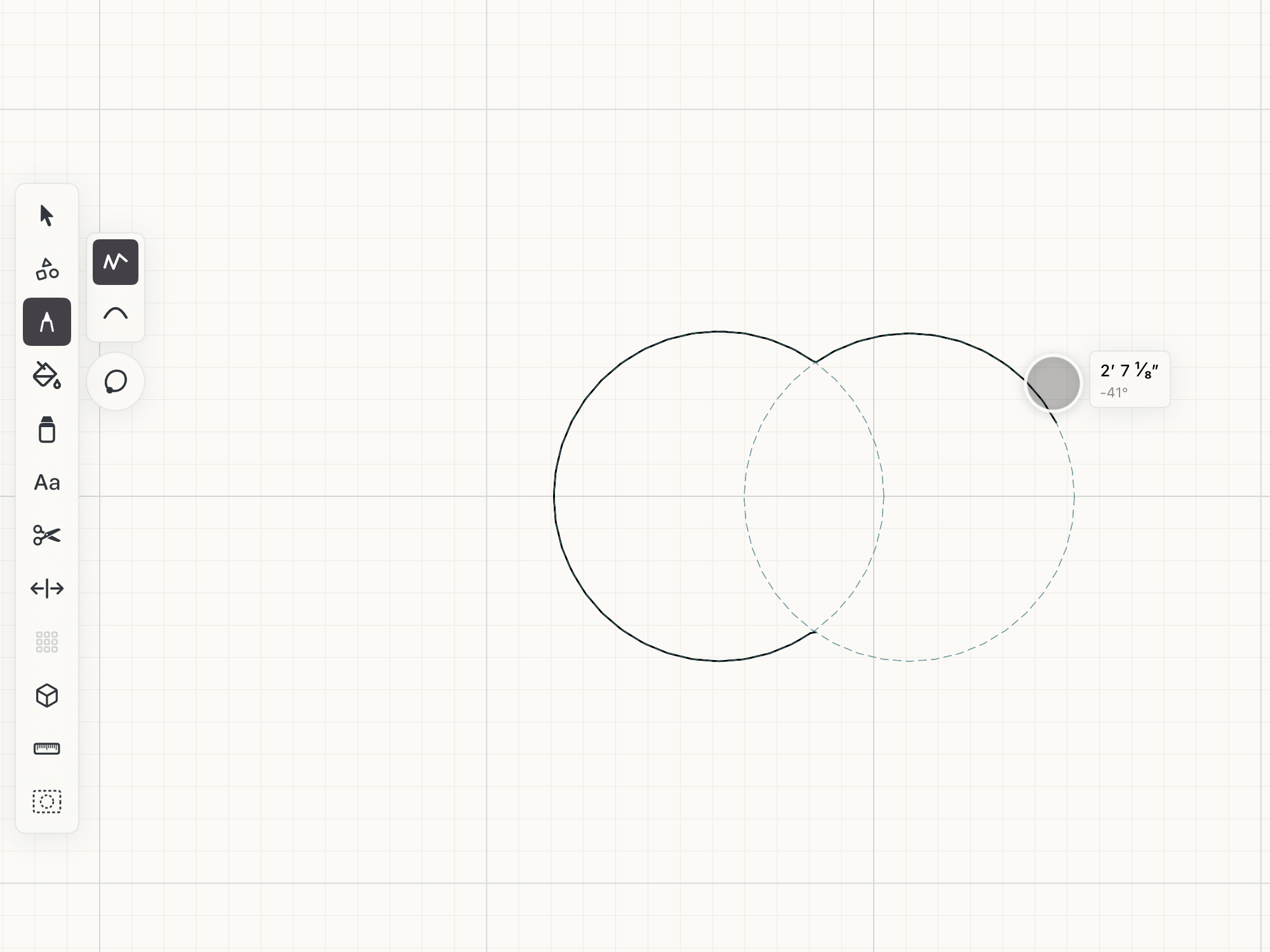 Guide tracing on the canvas
Subtools
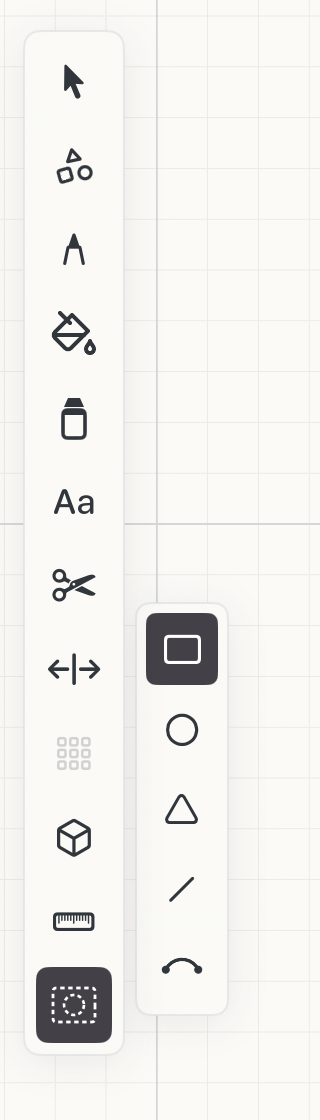
The same five shapes as the Shape tool, in the same order.
Rectangle
Hold Shift for a square.
Circle
Set out from its center.
Triangle
Hold Shift to keep its proportions.
Line
A single straight guide, for centerlines and setbacks.
Arc
Curved layouts set out from a radius.
How to use
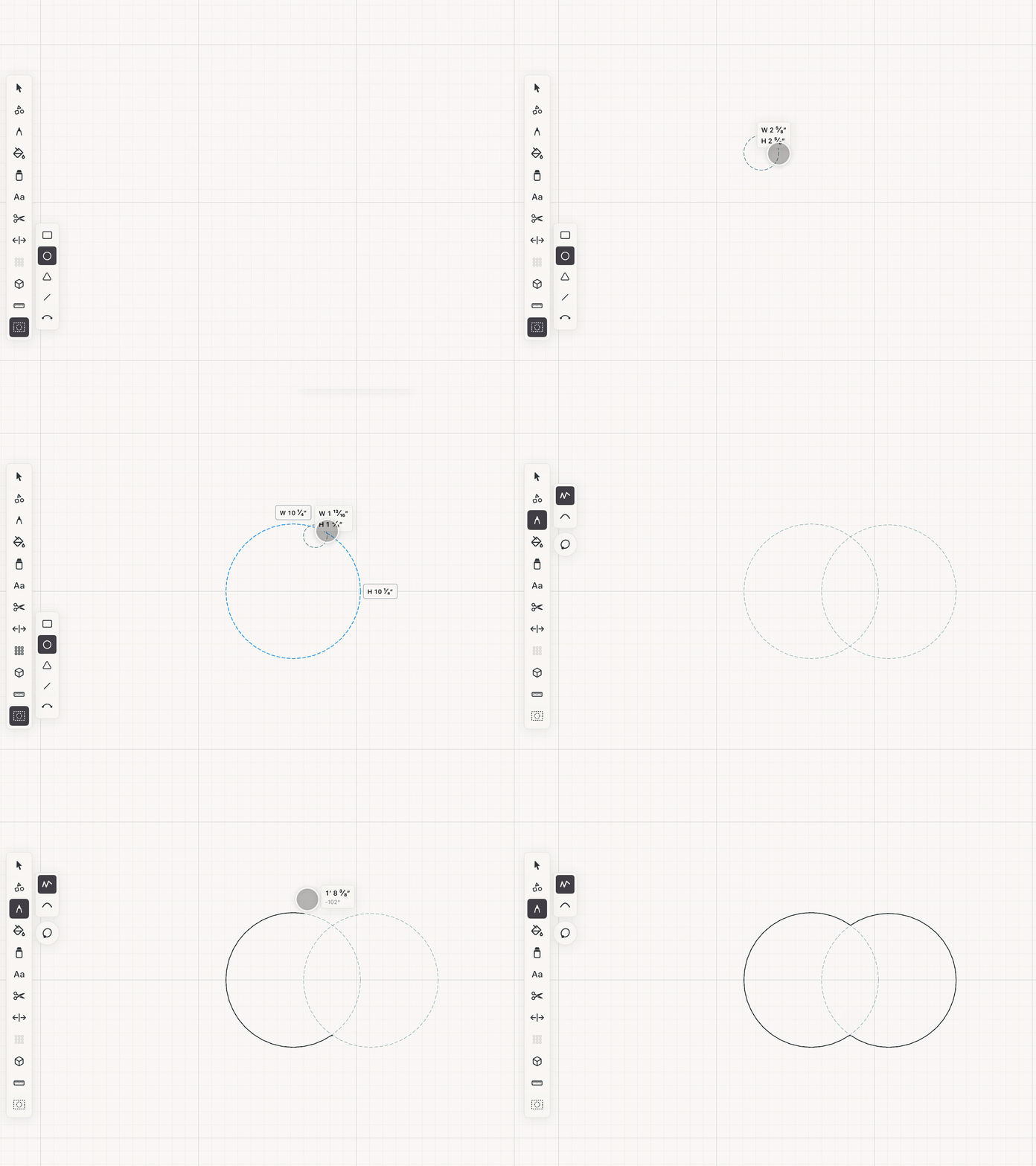
- Choose Guides and select Rectangle, Circle, Triangle, Line, or Arc.
- Draw the guide with touch, Pencil, or mouse. Hold Shift to constrain equal width and height where applicable.
- Place related guides on separate guide layers so construction systems can be hidden and restored together.
- Enable Guide snapping, then draw against the guide edges just as you would against finished geometry.
See it in use
Tips
- Keep separate guide layers for different layout systems or design options so each can be shown independently.
- Turn on Guide snapping when tracing a layout into finished drawing lines.
- Hide guide layers when reviewing or exporting the final drawing.