Color
Pick a stroke color and width, reuse recent colors, and load a whole palette at once.
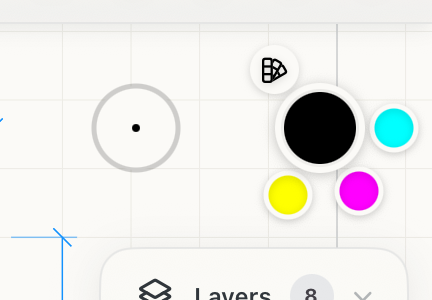
The color control sits at the top of the right-hand column, above Layers. Whatever it holds is what the next stroke, shape, fill or label is drawn in.
Stroke width
Drag up or right for a heavier line, down or left for a lighter one. The widths you've used lately fan out around it, so you can tap back to one.
Current color
Tap to open the color picker. With something selected in a different color, the first tap paints the selection in the current color instead; tap again to pick a new one.
Recent colors
The last few colors you used. Tap one to draw with it.
Palettes
Opens the list of palettes. Tap it again to close the list.
Palettes
A palette is a set of up to five colors. Picking one loads all five and loads the tapped color from the set into your current color.
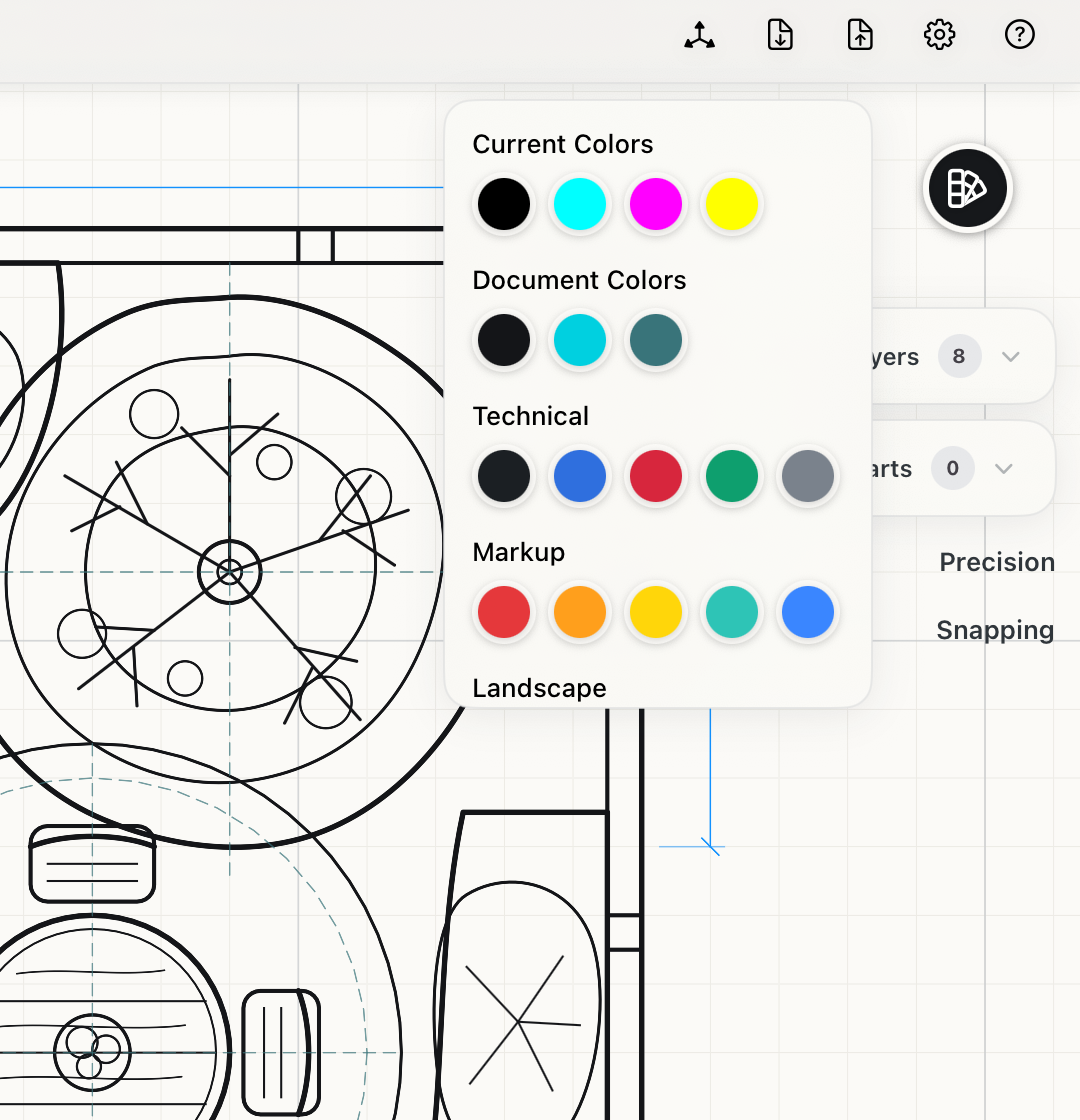
- Current Colors is what the control holds now, so you can find your way back to it.
- Document Colors are the colors this drawing already uses, most used first. Use them to keep new work matching what's there.
- Technical, Markup, Landscape, Sky, Earth, Vivid, Pastel, Graphite and the two Space sets are built in. Scroll the list to see them all.
Tap a palette's name to load it, led by its first color. Tap one of its swatches to load the palette led by that color instead.
The color picker
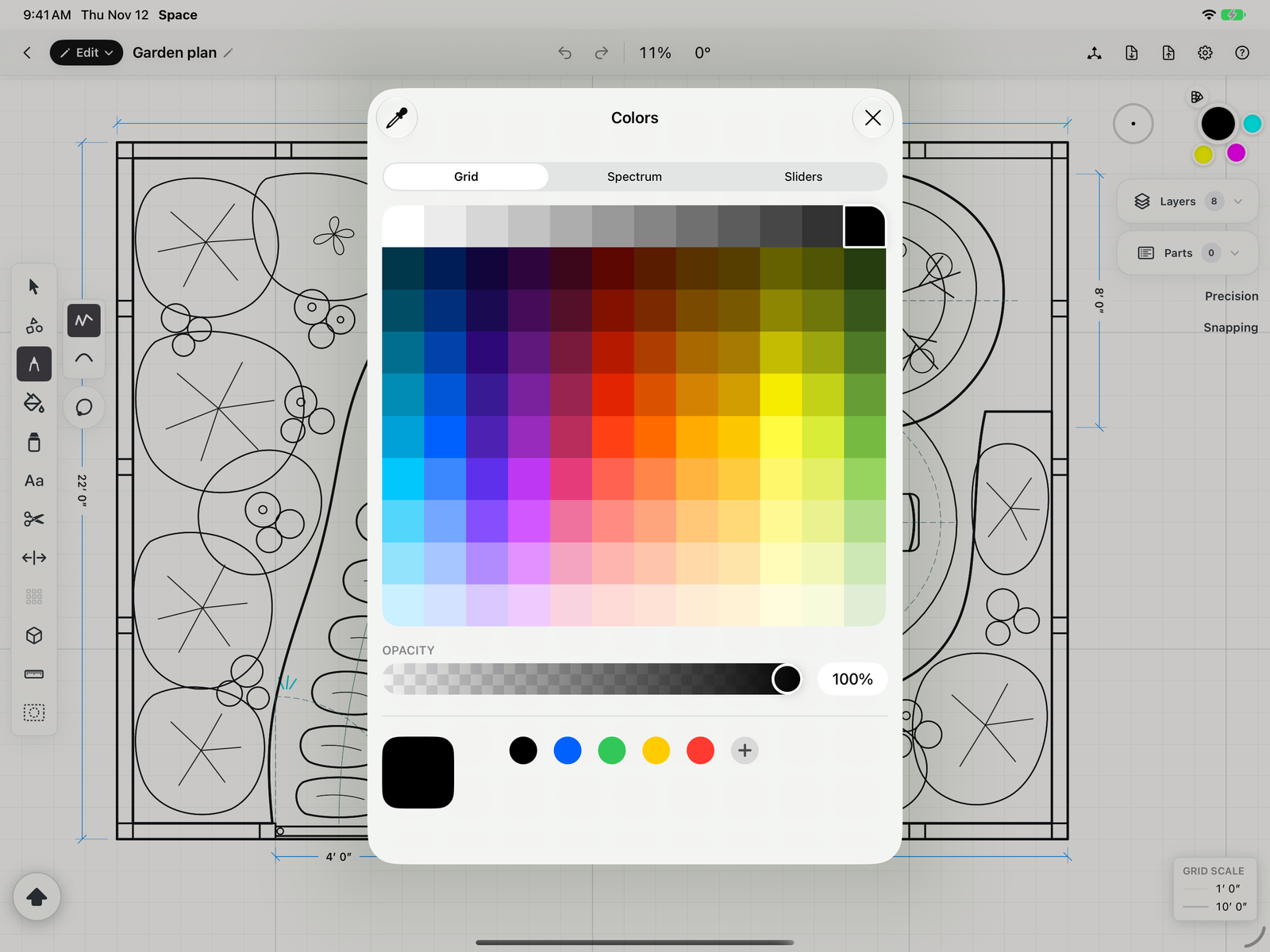
Tap the current color to choose any color. This is the native color picker on iOS/iPadOS and macOS.
Opacity sets how see-through the color is, which is useful for fills that shouldn't hide the linework under them. The eyedropper at the top left picks a color from the screen.
Tips
- Fill and Highlighter draw in the current color too. Lower the opacity for fills that sit behind the drawing, as in the Fill examples.
- Load Document Colors before adding to an existing drawing, so the new work matches.