Pen
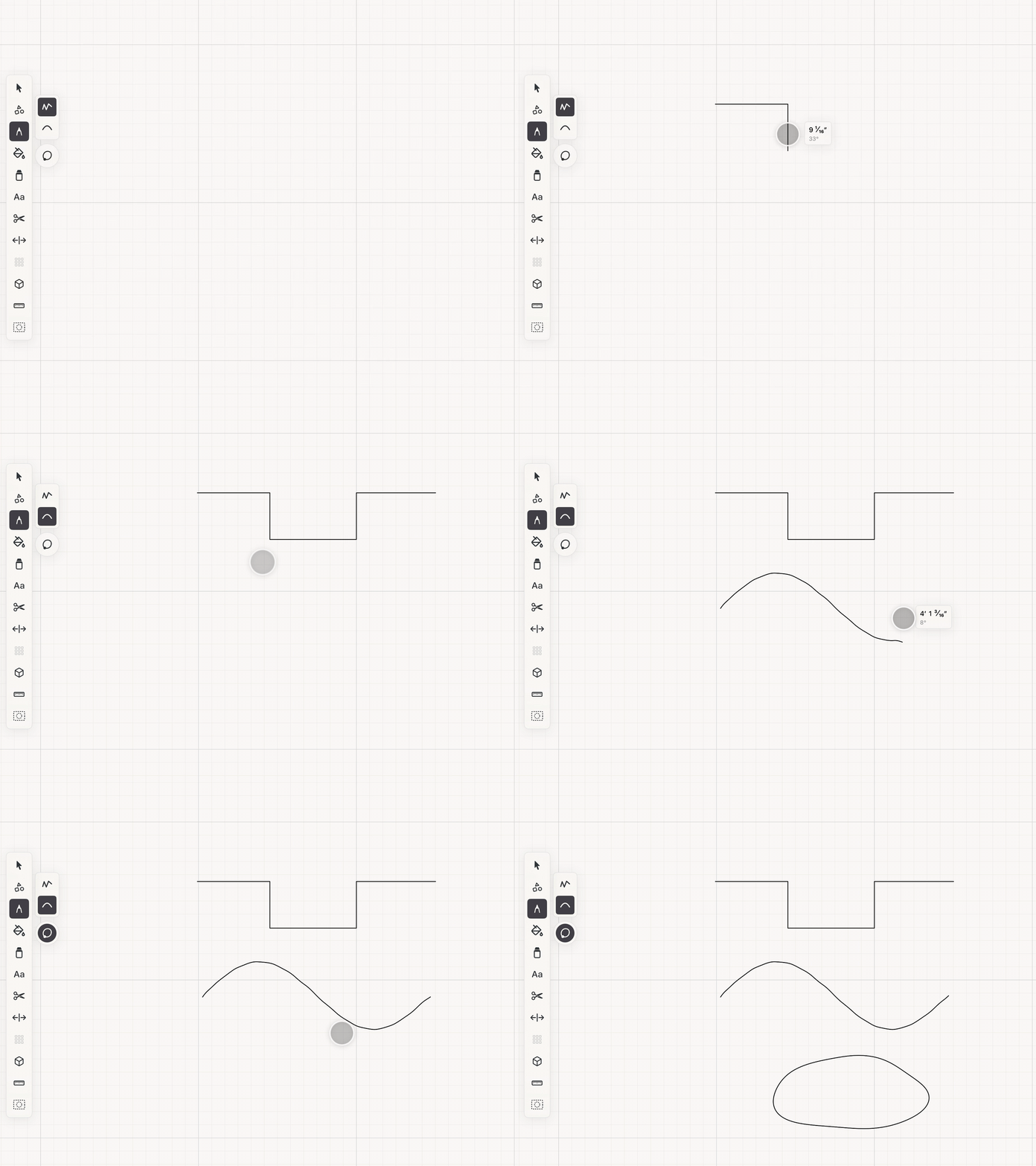
Sketch freehand or smoothed paths, close them into outlines, or draw clean measured lines that stay editable.
Pen combines the speed of sketching with the structure of a measured path. Each stroke stays editable after it is drawn.
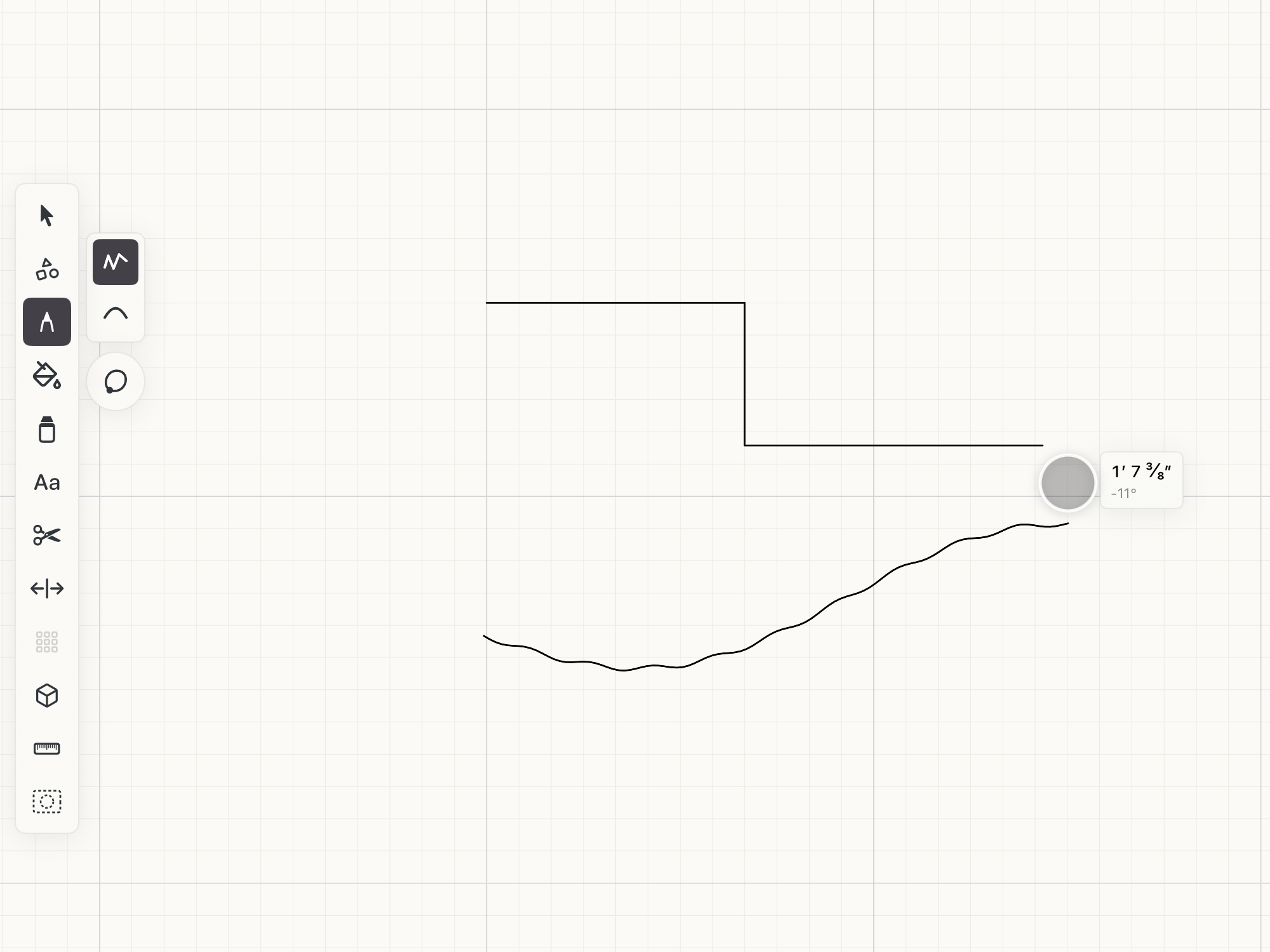 Pen stroke on the canvas
Subtools
Pen
The line goes exactly where your Pencil, finger or mouse goes, and follows the snapping you have turned on.
Smooth pen
Irons out the wobble as you draw. Each stretch of the line is averaged with the path just around it, never with the whole stroke, so a shaky hand comes out steady, tight jags round off into curves, and the shape you drew stays where you drew it. What you see while drawing is what you get when you lift.
Close Path
A modifier: while it's on, every stroke is closed back onto its start.
Smooth pen
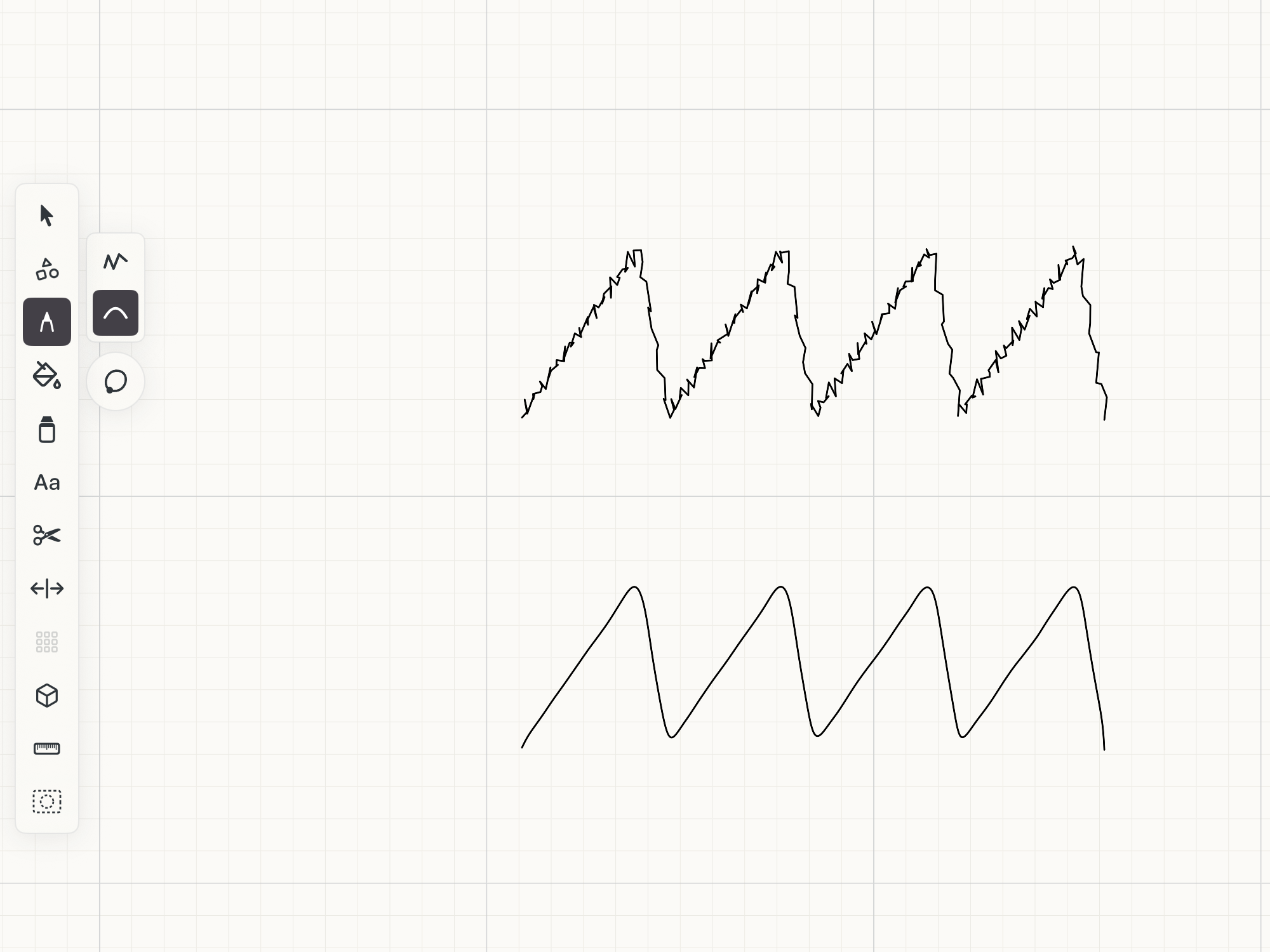 The same stroke with Pen, top, and Smooth pen, bottom
Smooth pen smooths freehand drawing only. With grid snapping on, or a perspective grid in use, the pen draws straight runs along the grid, and it leaves their corners square rather than rounding off what the snapping did.
Close Path
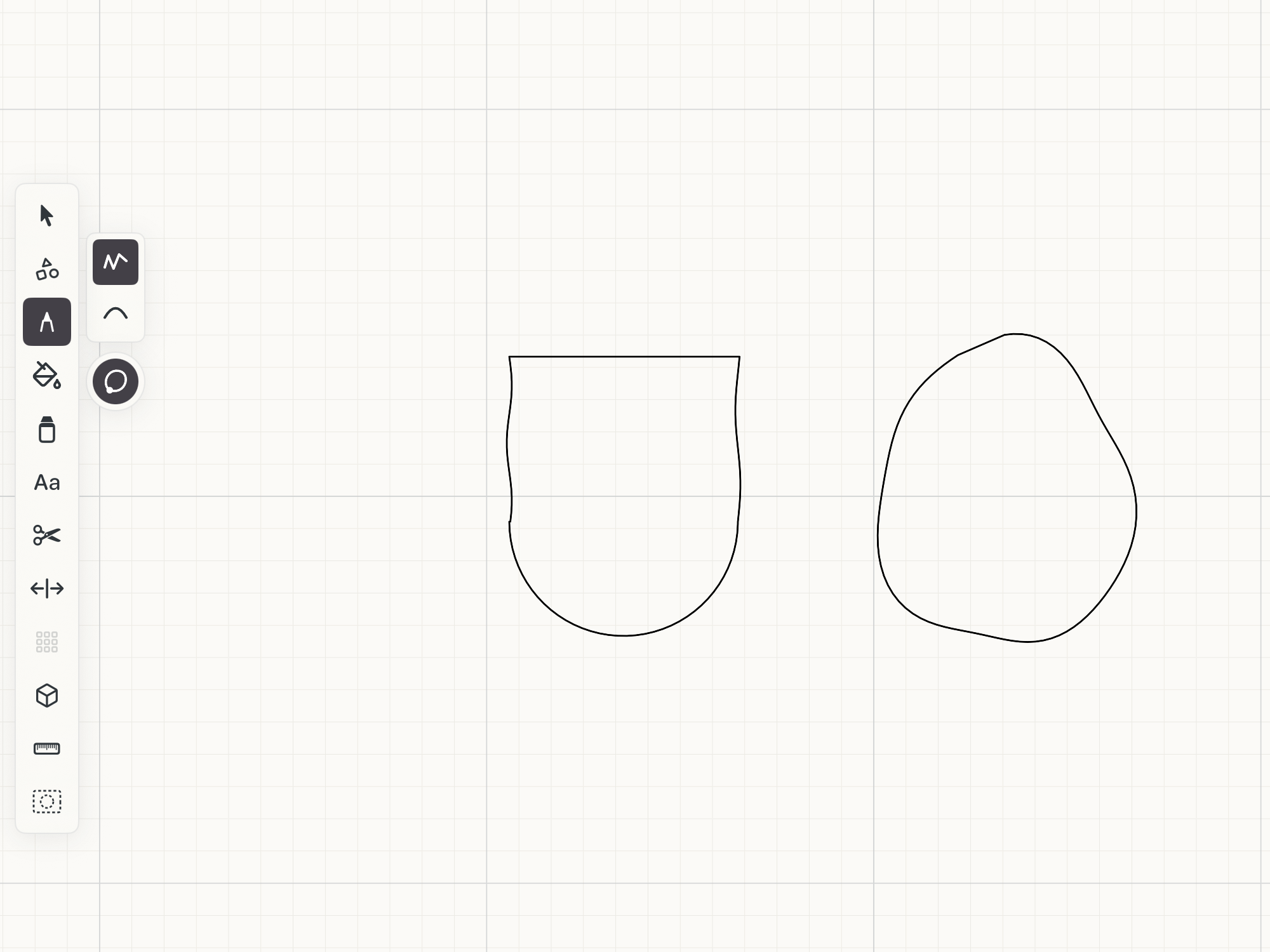 Left: ends far apart, closed with a straight edge. Right: a loop that stopped just short, joined smoothly
How the path closes depends on where you lift:
- Far from the start, the end is joined to the start with a straight line. Nothing you drew moves.
- Close to the start, Space treats it as a loop you were already closing. Any overshoot past the start is trimmed away, and the last stretch is eased onto the start, so the join reads as part of the stroke instead of a hook or a little tail.
The join shows while you draw, so you can see how the stroke will close before you lift. With Smooth pen, the closed outline is smoothed all the way round, join included.
How to use
- Choose Pen, then pick Pen or Smooth pen in the strip beside it.
- Turn on Close Path under the strip when every stroke should be a closed outline.
- Draw with Apple Pencil, a finger, a mouse, or a trackpad.
- Turn on Grid, Points, Lines, or Guides in Snapping when the path should follow existing geometry.
- With grid snapping active, pause into a turn to favor a square corner. A deliberate diagonal gesture keeps its angle.
- Hold Shift before beginning a stroke to lock the direction inferred from the opening motion.
See it in use
Tips
- Use Smooth pen for curves, outlines of found objects, and anything traced by hand from a photo.
- Use Close Path with Smooth pen to trace a closed shape, like a template or a cut-out, in one stroke.
- Turn on snapping when a stroke needs to meet an existing corner, center, guide, or grid point.
- Hold Shift for straight runs such as walls, edges, and centerlines.
- Double back over the last snapped segment to remove that segment without starting over.