Shapes
Create common geometric forms with exact sizes and editable handles.
Use Shapes when an object needs a clean geometric outline or a specific size, such as a room, opening, tabletop, radius, or fixture.
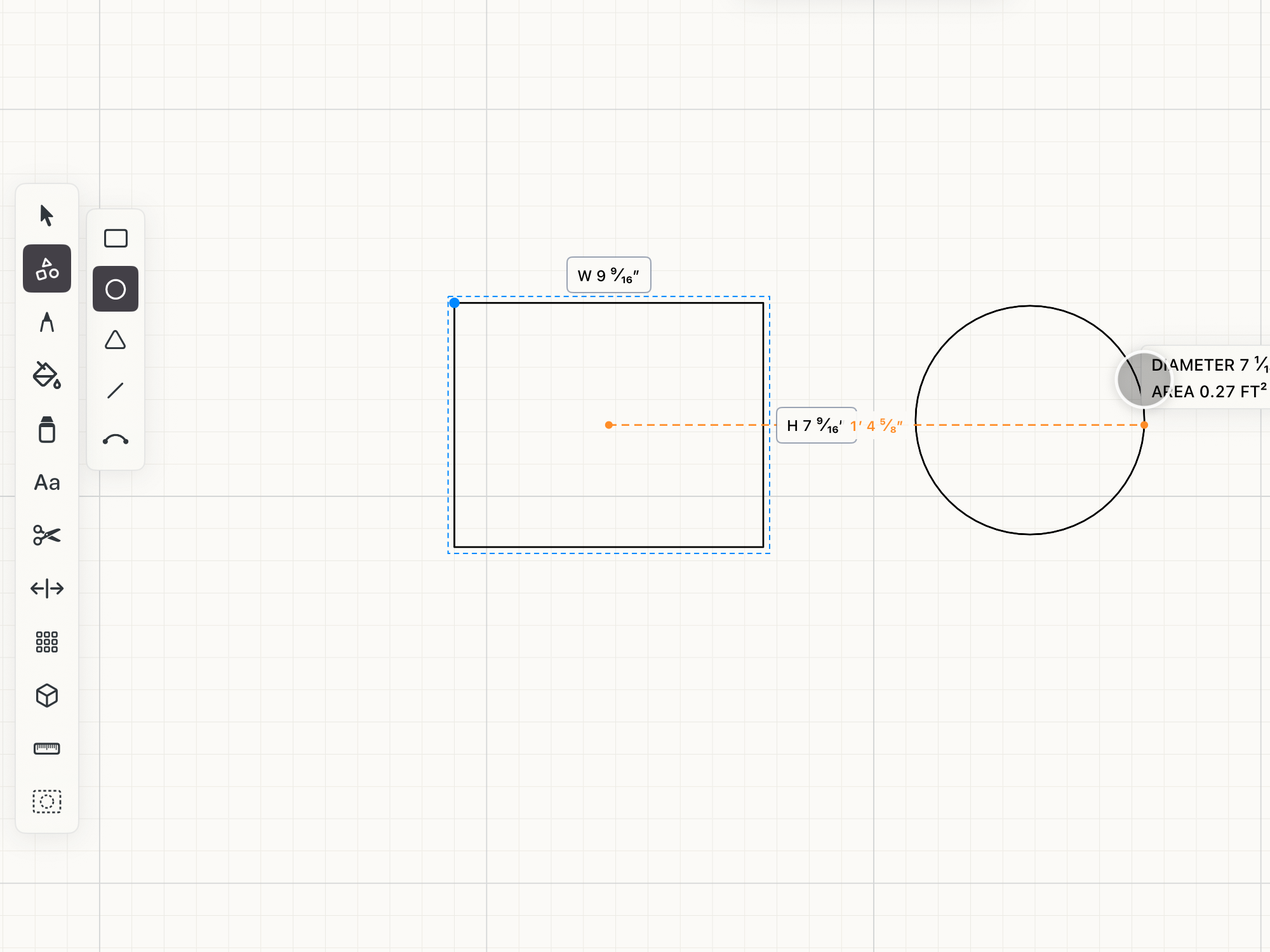 Shape controls on the canvas
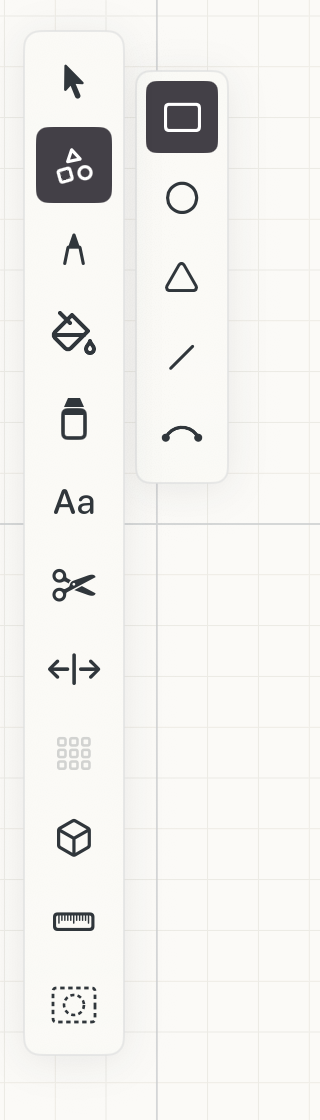
Rectangle
Width, height and area as you draw. Hold Shift for a square.
Circle
Diameter and area, with a handle on the radius.
Triangle
Hold Shift to keep its proportions.
Line
A single straight segment.
Arc
Curved walls, door swings, and anything set out from a radius.
How to use
- Open the Shape subtools and choose Line, Rectangle, Circle, Triangle, or Arc.
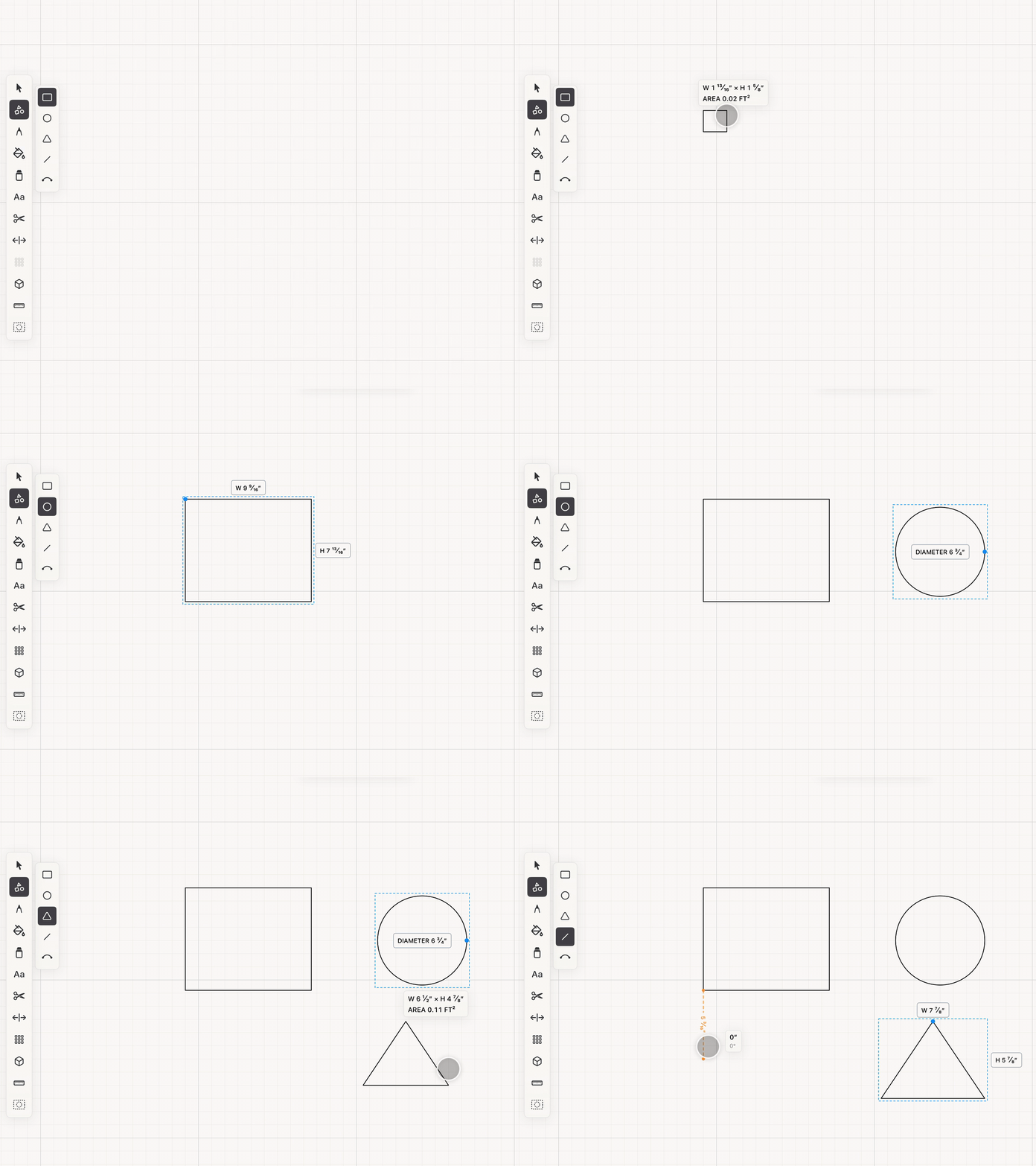
- Drag on the canvas to create the object. Rectangles and triangles report width, height, and area; circles report diameter and area.
- Use corner handles to resize rectangles and triangles. Use the radius handle to resize a circle.
- Tap a visible dimension label to enter an exact value in the precision keypad.
See it in use
Tips
- Hold Shift to make a square or keep a triangle proportional.
- Snap to a shape's center when laying out concentric objects or symmetrical details.
- Use Arc for curved walls, swing paths, and radius-based layouts that need to stay exact.