Interface
A tour of the editor, from the top bar to the tool rail and the floating palettes.
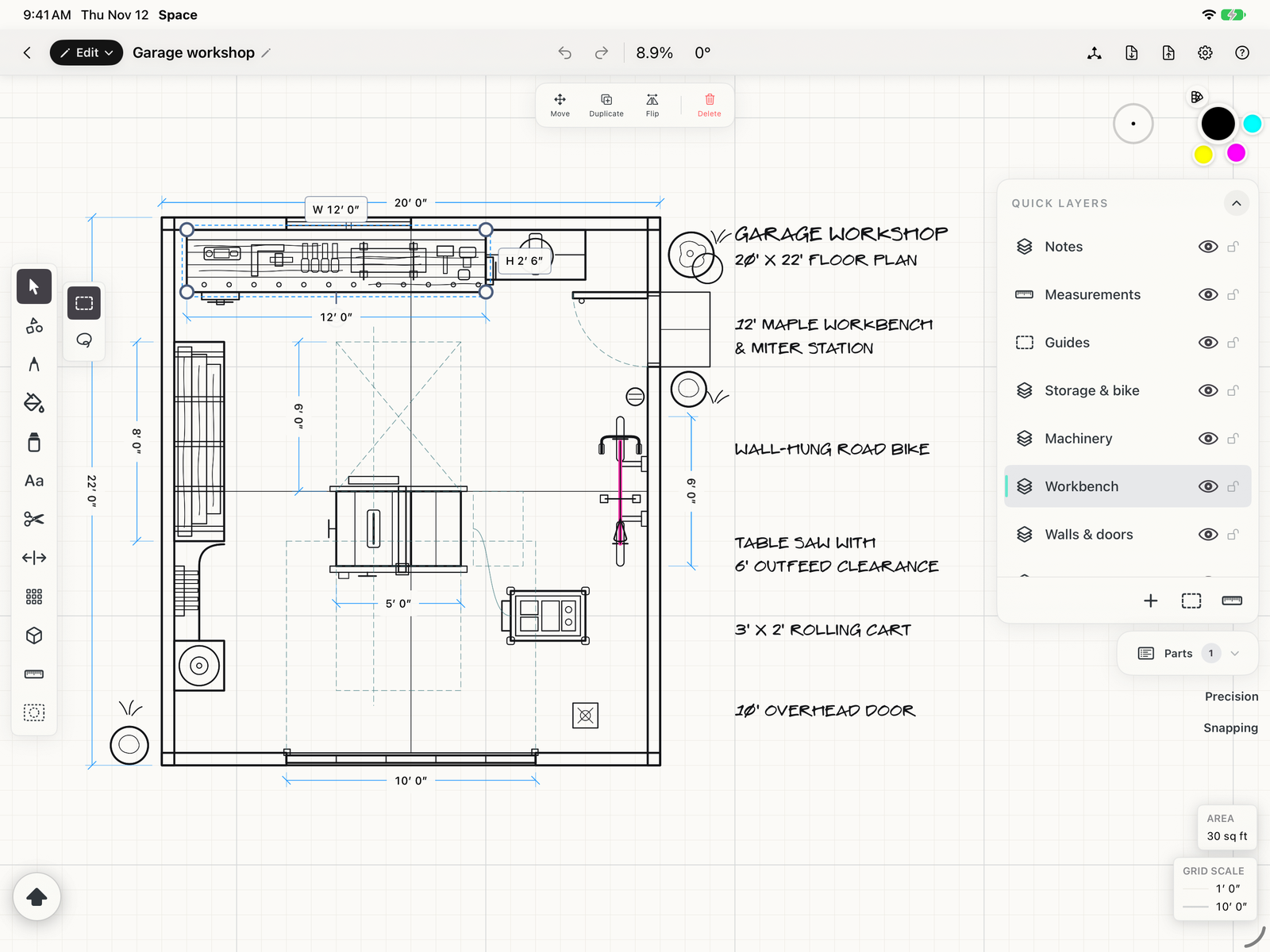
Back
Closes the drawing and returns to the welcome screen.
Workspace
Switches between Edit, Plan and Place. See Welcome to Space.
Document name
Tap the name to rename the drawing.
Undo and redo
Steps back and forward through your changes. A two-finger tap on the canvas also undoes.
Zoom and rotation
The current zoom and canvas rotation. Tap the zoom to go back to 100%, where a line on screen is its real size.
Document actions
Scan a wall or room, add a perspective grid, import an image or SVG, export, and open Settings. The ? button at the far right opens the Help Center.
Tool rail
Every drawing tool, top to bottom. See Side tools.
Subtools
The active tool's subtools, beside it on the rail. For Select, that's Box or Lasso selection. Some tools also have round modifier buttons under their subtools.
Selection actions
Move, Align, Duplicate, Flip, Group and Delete for whatever is selected. With an image selected, it also has Set Scale. See Quick tools.
Color and stroke
The current stroke color and width, at the top of the right-hand column, with your recent colors and the palettes. See Color.
Quick Layers
The drawing's layers. See Layers.
Parts
A cut list of the selected parts. See Parts list.
Precision
Grid, live dimensions, alignment hints and units. Tap to open its strip beside the column, and again to close it. See Precision.
Snapping
What new and moved geometry snaps to. See Snapping.
Shift
The on-screen Shift key for iPad without a keyboard. Hold it to constrain angles, keep proportions, or add to a selection, just like Shift on a keyboard.
Grid scale
How far apart the minor and major grid lines are at the current zoom. Layers and Parts always stop short of it, however long they get, so Precision and Snapping stay in reach.