Clone array
Repeat an object in rows and columns with controlled spacing or overall size.
Use Clone array for repeated items such as lights, slats, holes, shelves, tiles, or seating. Adjust the count and spacing while viewing the full arrangement.
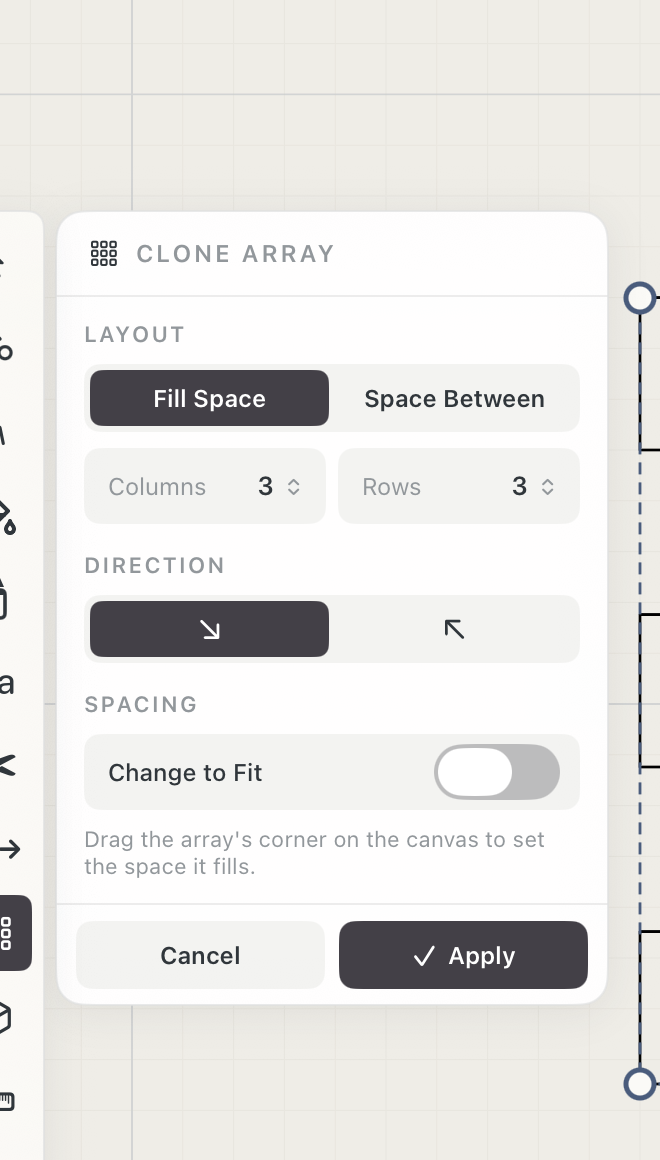 Fill Space settings
How to use
- Select the source object or group, then choose Clone.
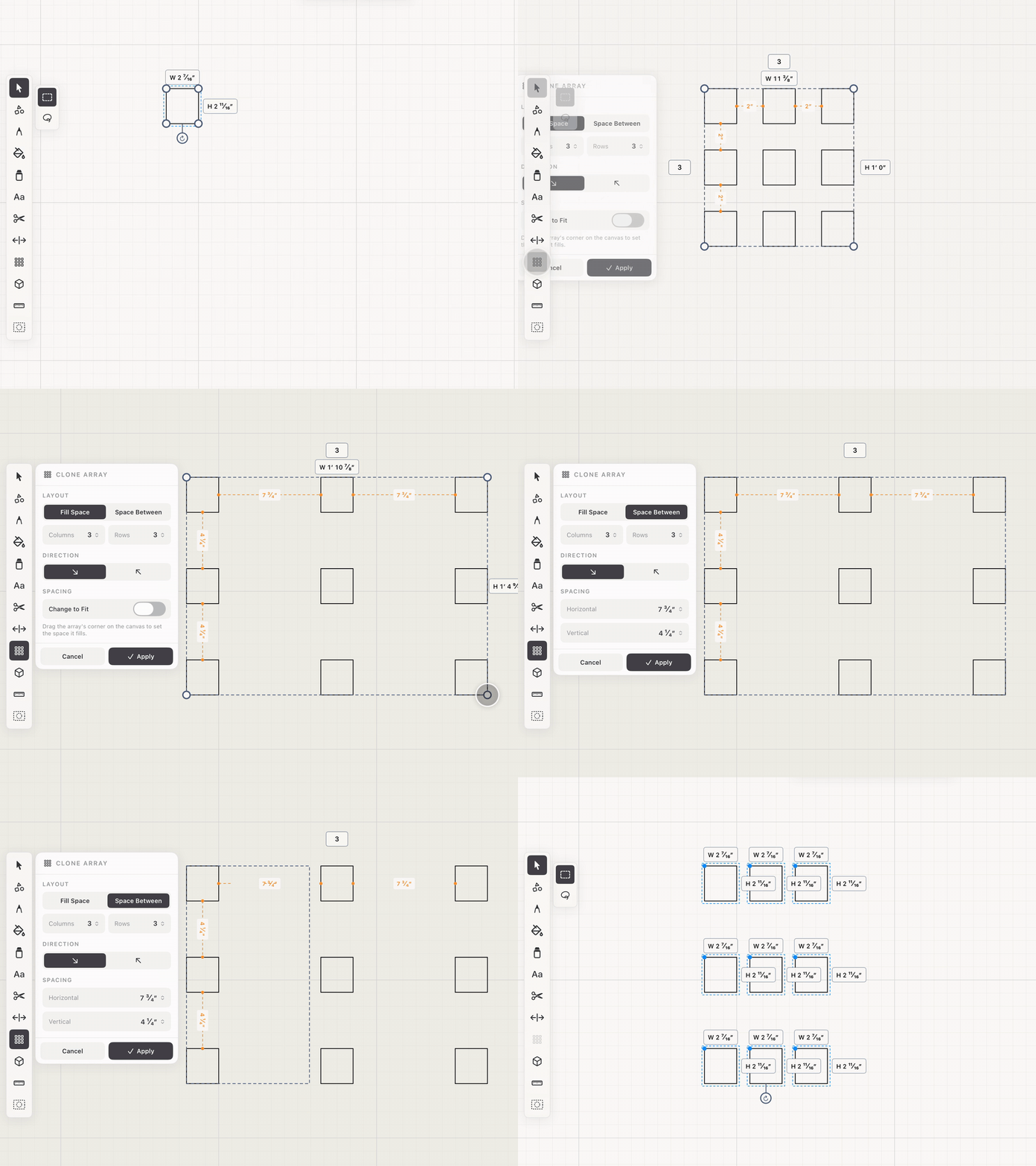
- Use Fill Space to define an overall width and height, or Space Between to define the gap directly.
- Set horizontal and vertical clone counts by dragging their labels or tapping for number entry.
- Adjust the bounding handles while orange spacing indicators show the resulting distance.
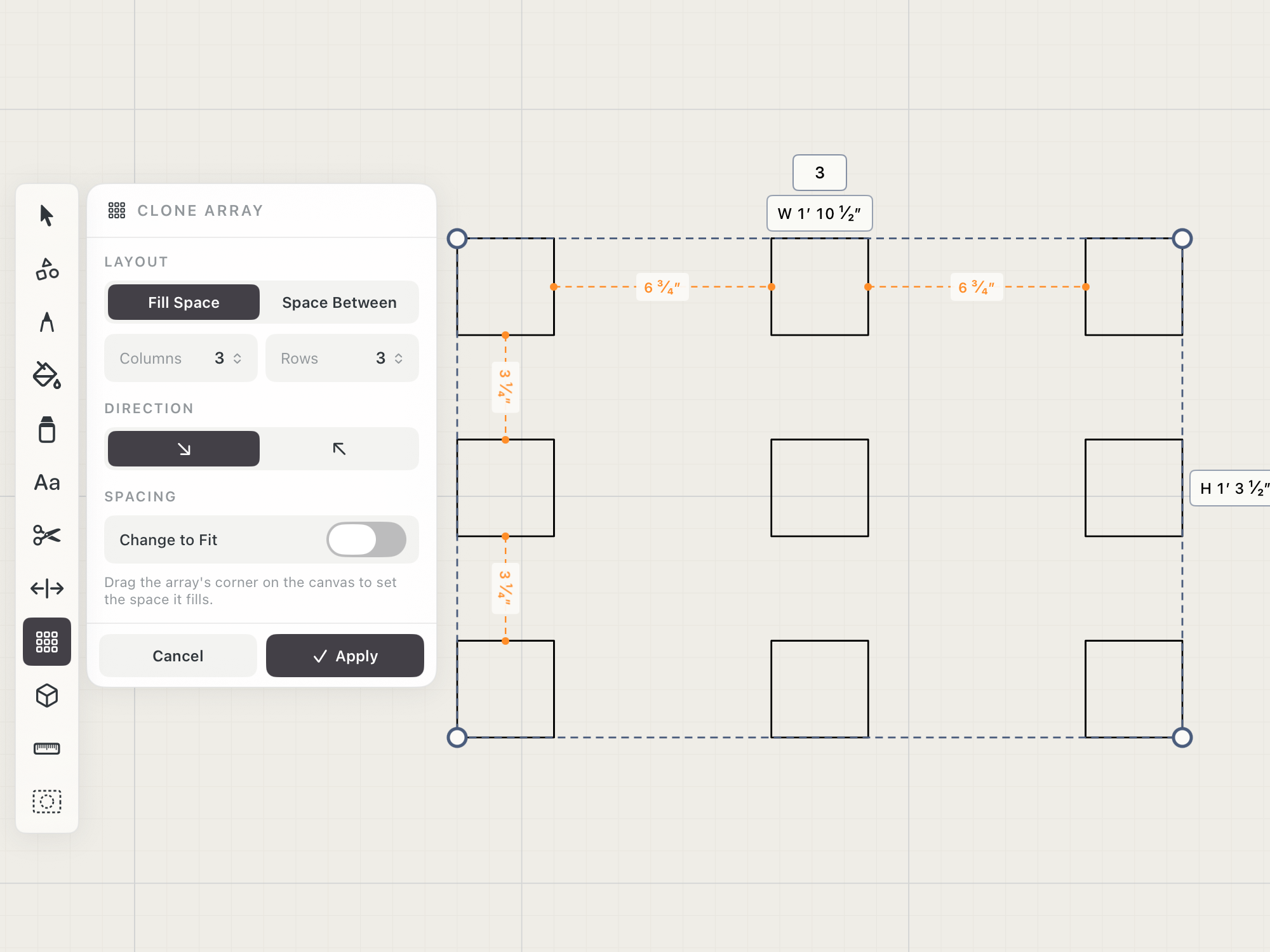 Fill Space preview
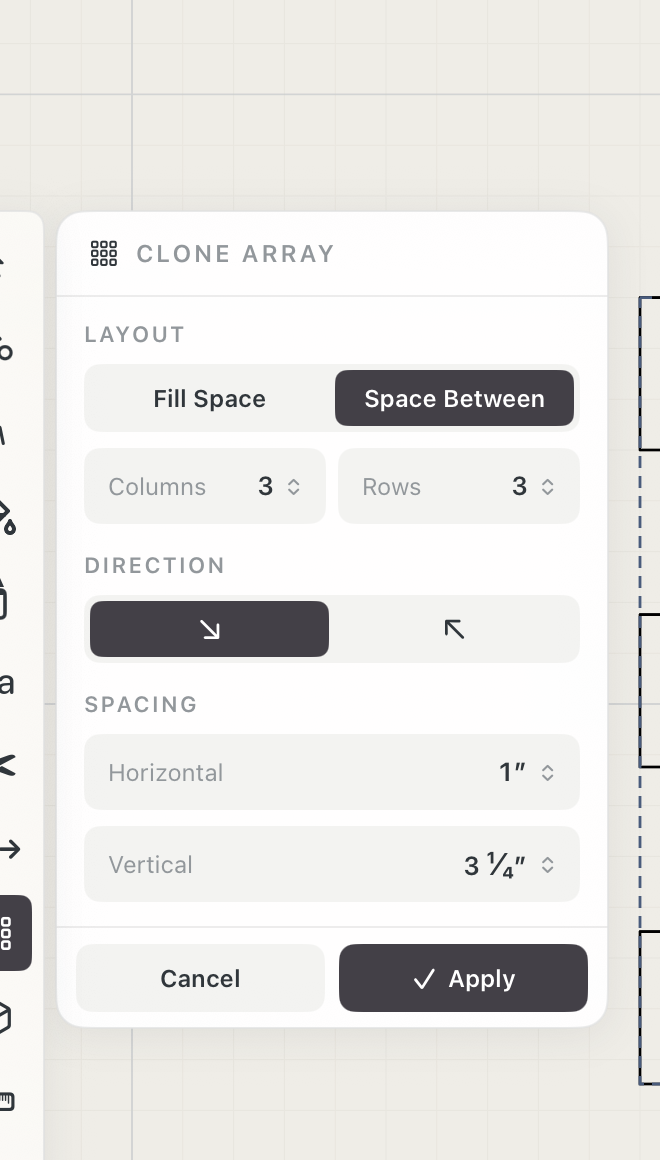 Space Between settings
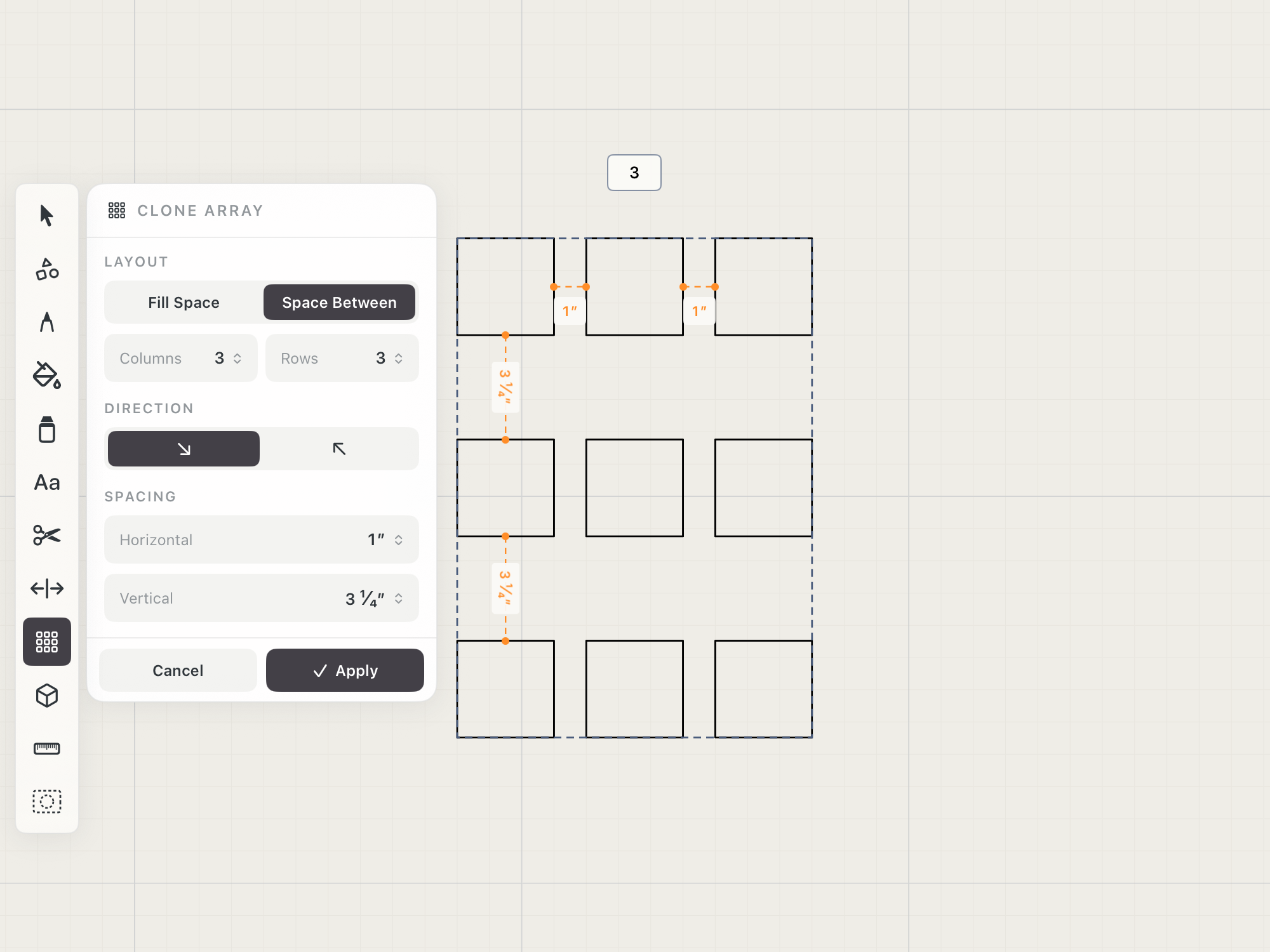 Space Between preview
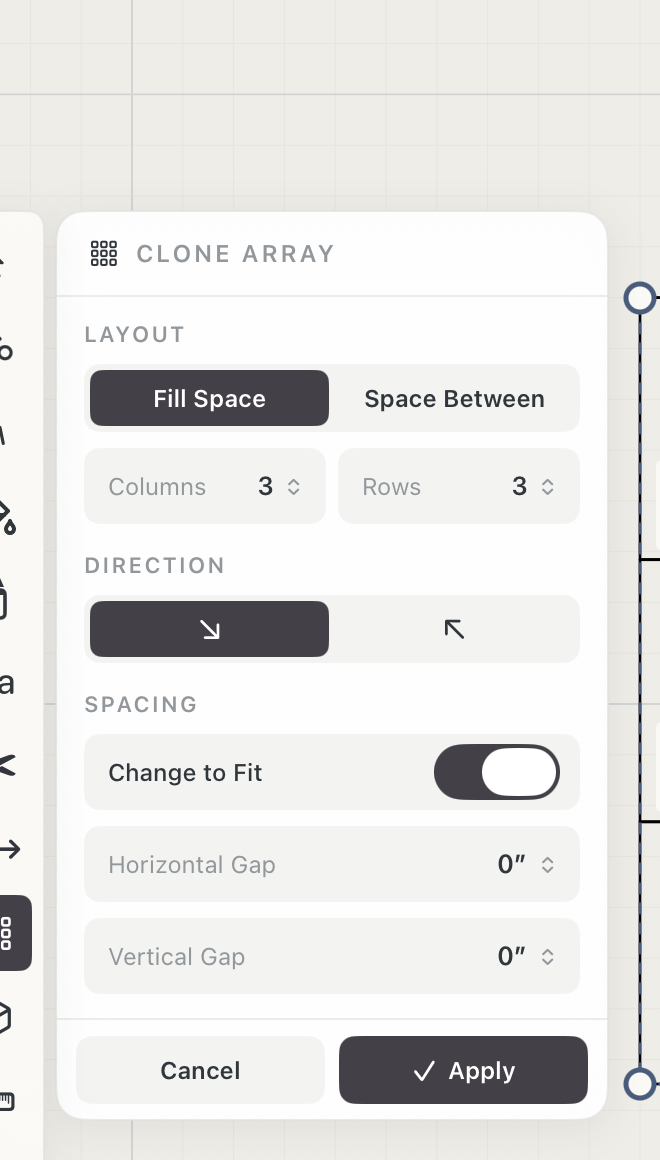 Change to Fit settings
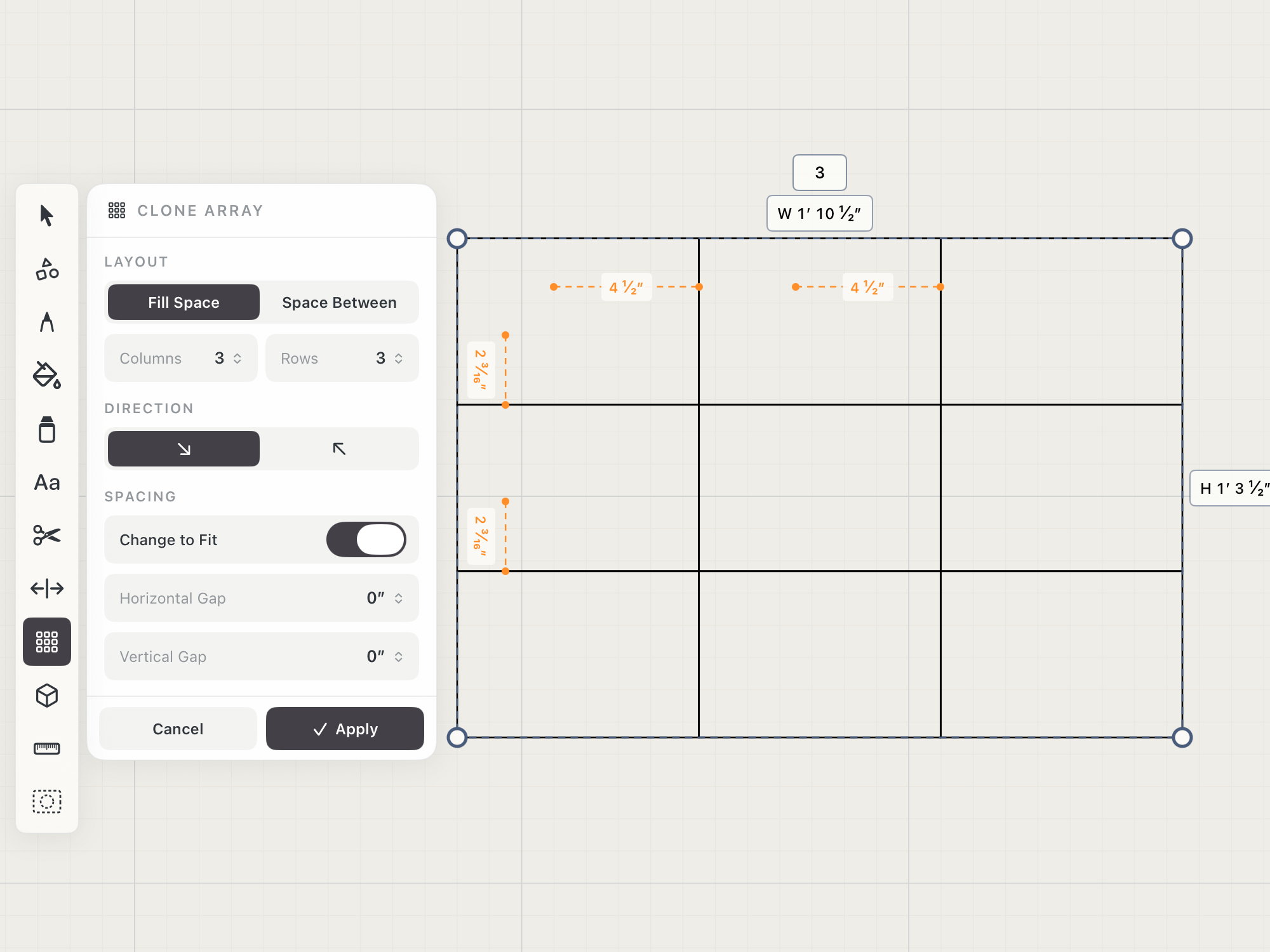 Change to Fit preview
See it in use
Tips
- Use Fill Space when the array must fit inside a known opening or boundary.
- Turn on Change to Fit to resize every copy so the array fills the space with exactly the gaps you enter. Width and height change independently, so a square can become a rectangle, such as panels filling a wall.
- Use Space Between when the gap matters more than the array's total width or height.