Fill
Add colored regions for materials, zones, shadows, or markup.
Use Fill to add a closed area of color without redrawing the surrounding linework. Filled regions remain editable and can be layered.
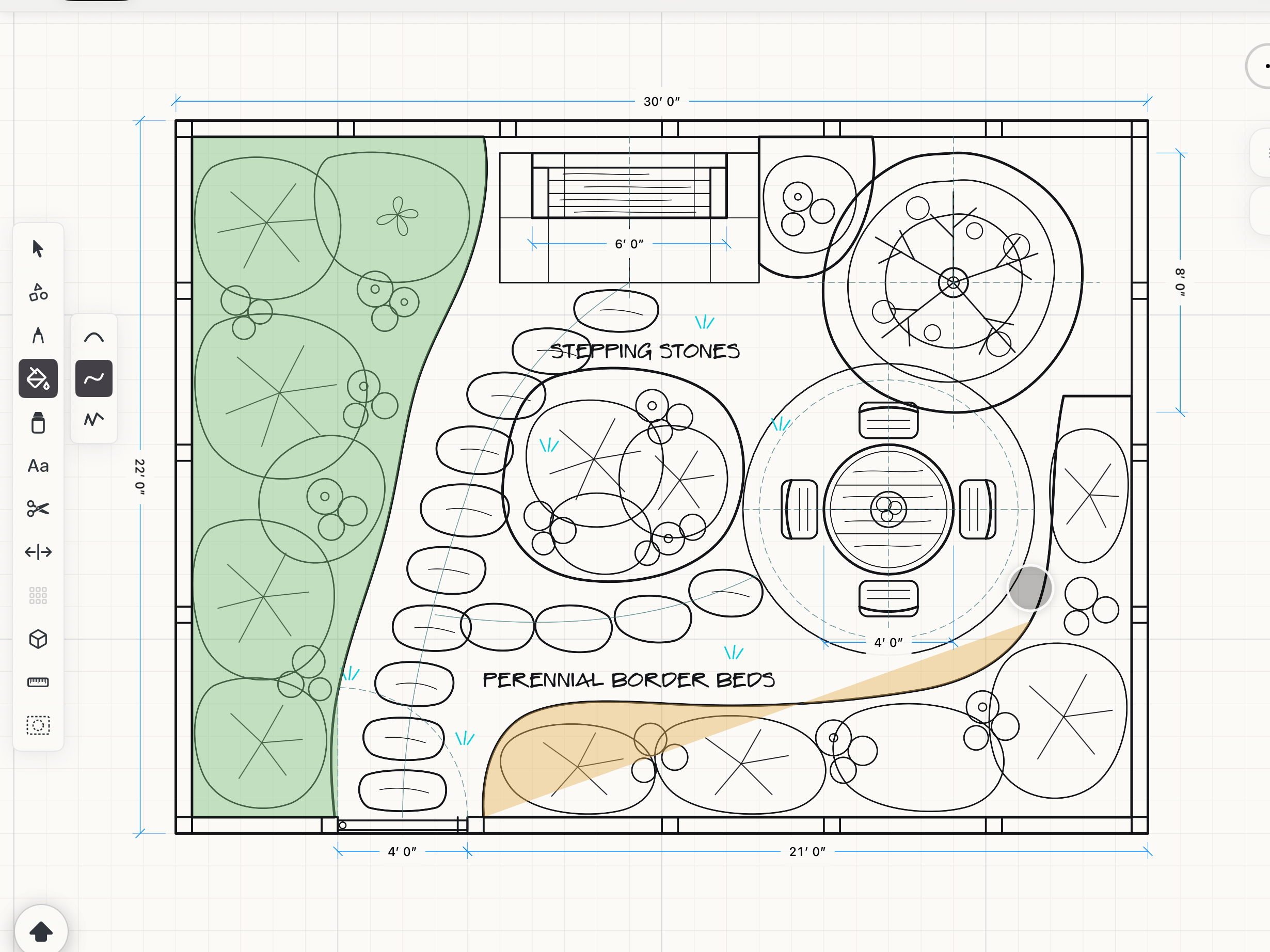 A fill being drawn
Subtools
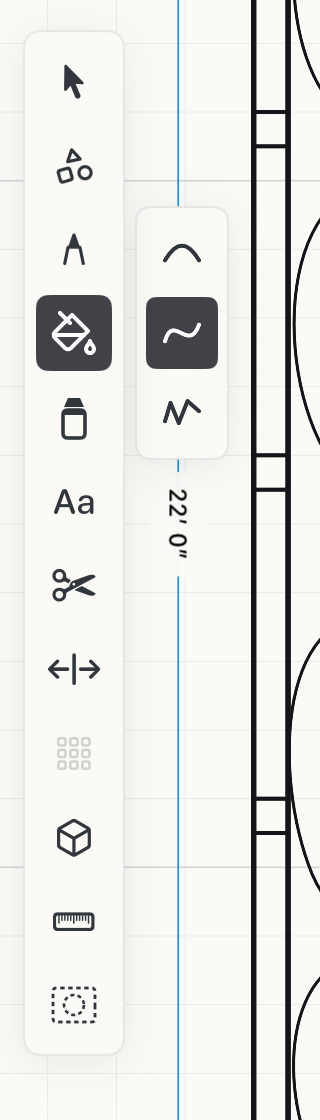
Extra smooth
Irons the wobble right out of the outline, for organic shapes and quick zones.
Smooth
Softens small jitters but keeps sharp corners. The default.
Exact
Keeps the outline exactly as drawn.
How to use
- Choose Fill, then pick a color and opacity from the color control. A lower opacity keeps the linework under the fill readable.
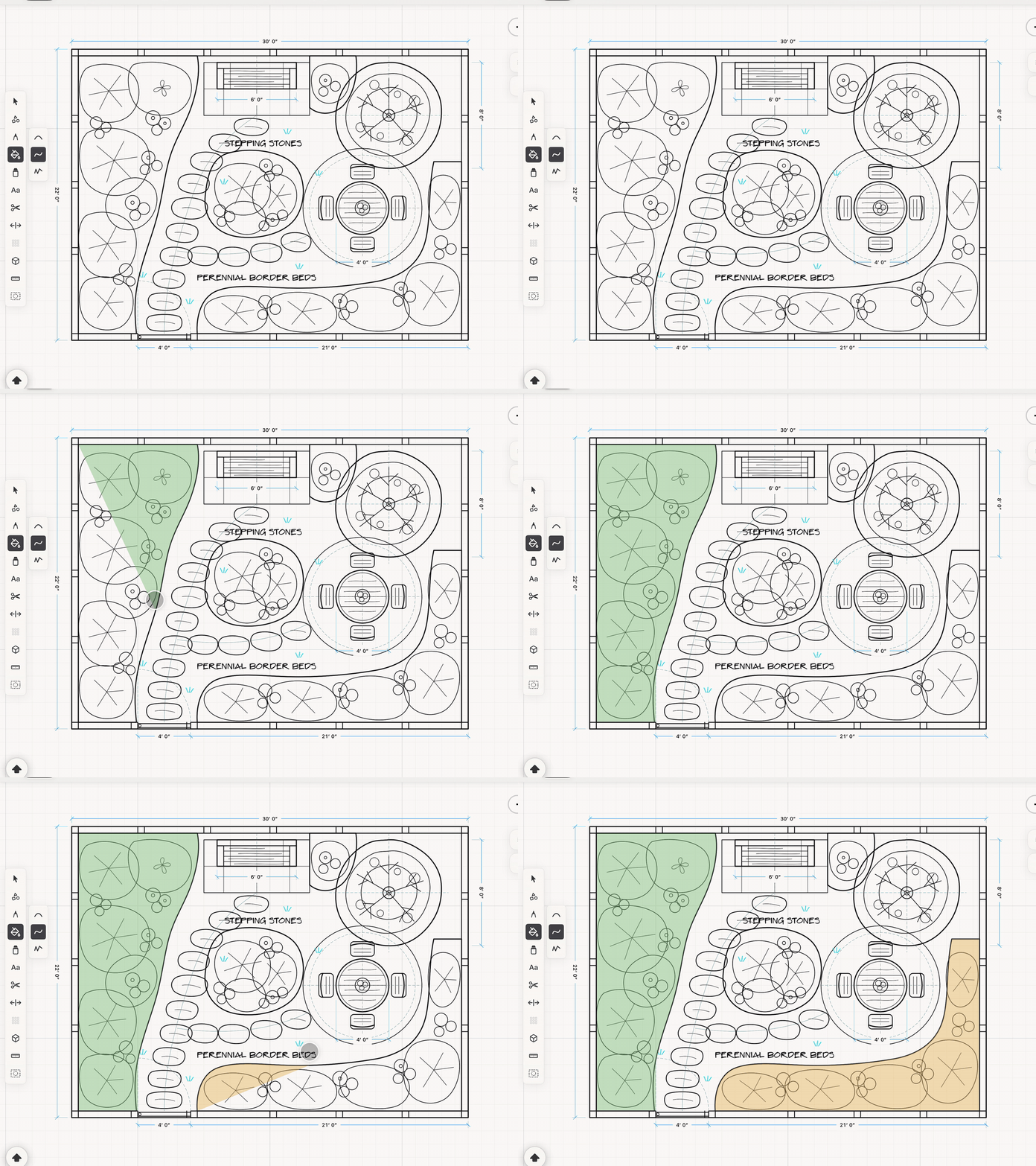
- Draw the region boundary with Pencil, touch, or mouse. A straight preview edge connects the live point back to the start.
- Release anywhere to close and commit the region; you do not need to trace back to the first point.
- Finish near the starting point when you want Space to weld the endpoints into a smooth connection.
See it in use
Tips
- Use lower opacity to mark zones while keeping the drawing visible underneath.
- Layer fills to compare overlapping areas such as circulation, lighting, or material changes.