Snapping
Snap drawing and movement to the grid, points, lines, and guide outlines.
Snapping makes new and moved objects meet existing geometry exactly, without typing every position. On iPad and Mac it's the tab under Precision, at the foot of the right-hand column. Tap it to open its strip, and tap it again to close it.
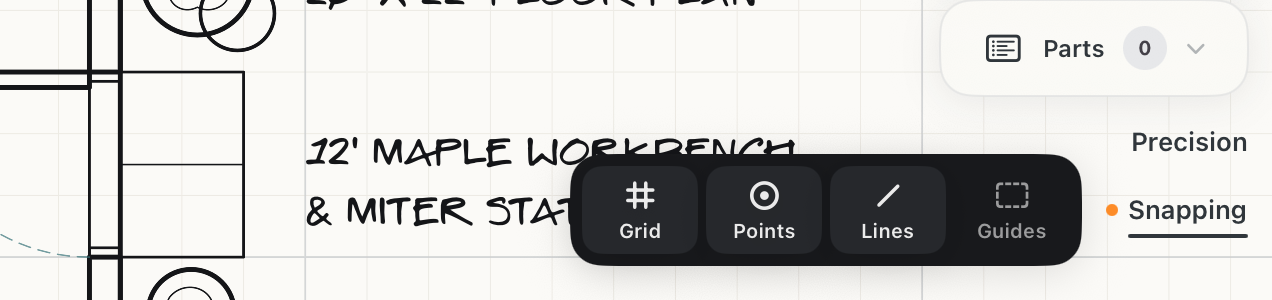
Grid
Snaps to grid intersections. With a perspective grid showing, it snaps to that grid instead, and its icon changes to match. It dims while the grid is hidden in Precision.
Points
Snaps to endpoints, corners and centers.
Lines
Snaps to any position along an existing path.
Guides
Snaps to guide outlines.
Each switch is independent. Turn on the ones you want; when they're all off, nothing snaps.
While any of the four is off, an orange dot sits to the left of the word Snapping, so you can see that snapping is limited without opening the strip. Turn them all back on and the dot goes away. (Precision shows the same dot for its own switches.)
To switch all four at once, hold Shift (on the keyboard or the on-screen Shift key) and tap Snapping. If they're all on, or some are on and some off, they all switch off. If they're all off, they all switch back on. The strip doesn't open or close.
How to use
- Tap Snapping to open its strip.
- Turn on only the sources you need, so the target you want is easier to hit.
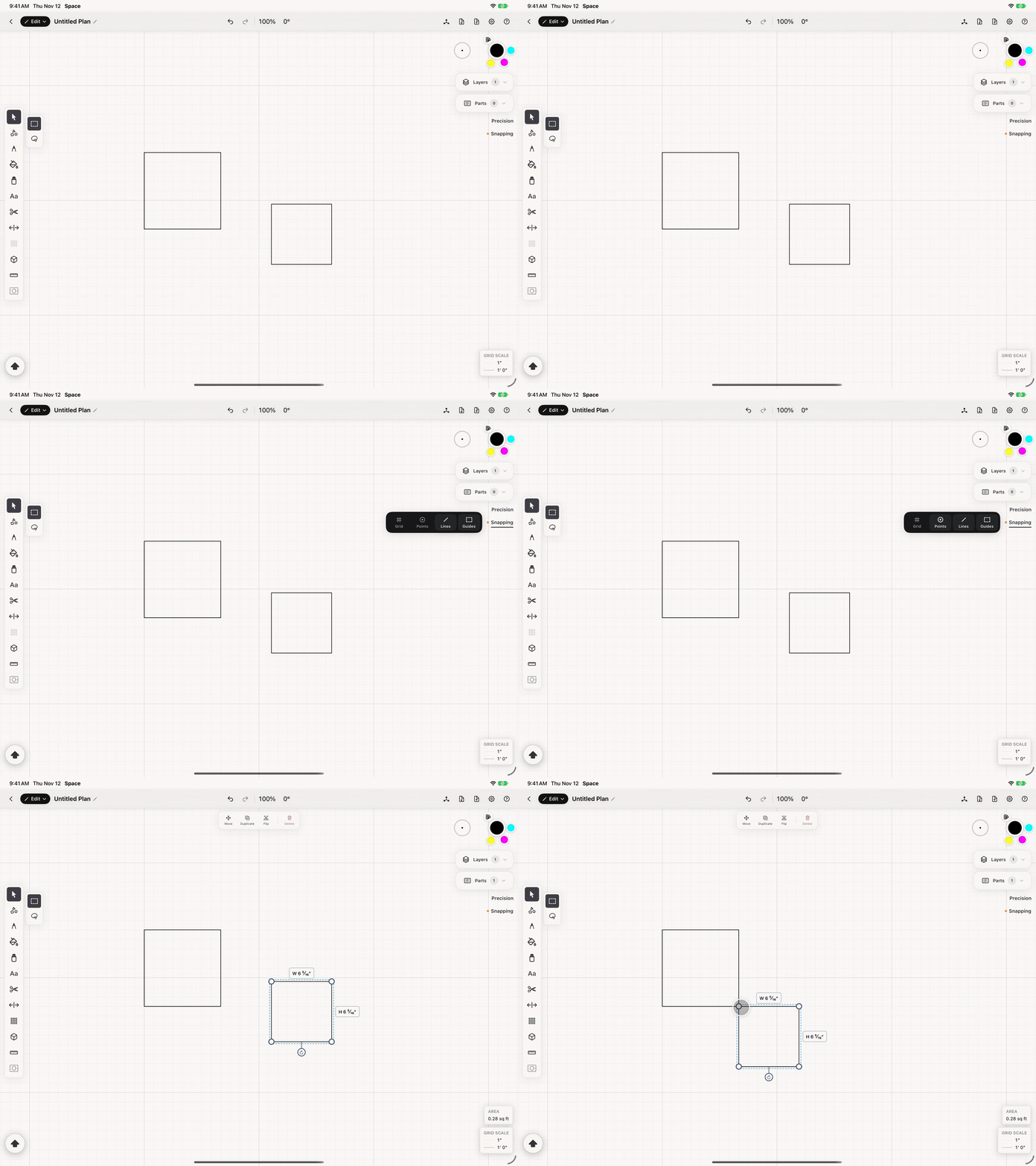
- Watch for orange alignment hints while drawing or moving. The label between them reports the gap to whatever you're aligning to. (Hints can be hidden under Precision.)
- Tap Snapping again to close the strip. Your choices stay as they are.
See it in use
Tips
- Use Points to meet corners and centers, Lines to follow an existing edge, and Guides for construction layouts.
- Turn off sources you do not need when several nearby objects compete for the same snap.
- Shift-tap Snapping to turn snapping off completely for loose sketching, and again to turn it all back on.
- Watch the orange hints to confirm what the object is aligning to before you release it.