Quick tools bar
The actions for whatever you have selected, in a bar that appears beside it.
The quick tools bar appears when you select something. It only shows actions that apply to the current selection, so it changes as the selection does.

Move
Moves the selection by an exact amount, or to an exact distance from another edge. Move
Align
Lines objects up on an edge or center, and evens out the gaps between them. Appears when two or more objects are selected. Align and distribute
Duplicate
Makes a copy of the selection. ⌘D does the same.
Flip
Mirrors the selection. Choose Horizontal or Vertical.
Group
Joins the selection into one object that moves and resizes together. With a group selected, this becomes Ungroup.
Delete
Removes the selection.
One object selected
With a single object selected, the bar has Move, Duplicate, Flip and Delete.
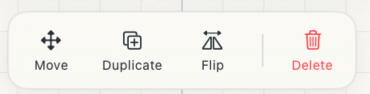 One object selected.
An image selected
With an image selected, the bar also has Set Scale, the ruler. It opens the Image Scale panel, where you mark a length you know on the image so everything traced from it is true to size. See Images and scale.
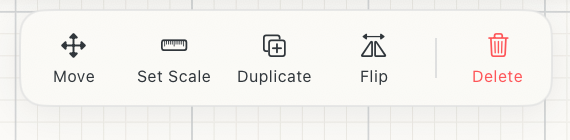
Tips
- Use Move when an object needs an exact offset or clearance from another edge.
- Use Align to share an edge or center line, or to distribute objects with equal or specified spacing.
- Flip is useful for mirrored parts, left- and right-hand versions, and reflected layouts.