Parts list
Turn selected parts into a cut list with quantities, finished sizes, thickness, and board feet.
Parts list groups selected geometry by finished size, shows the quantity of each size, and totals board feet.
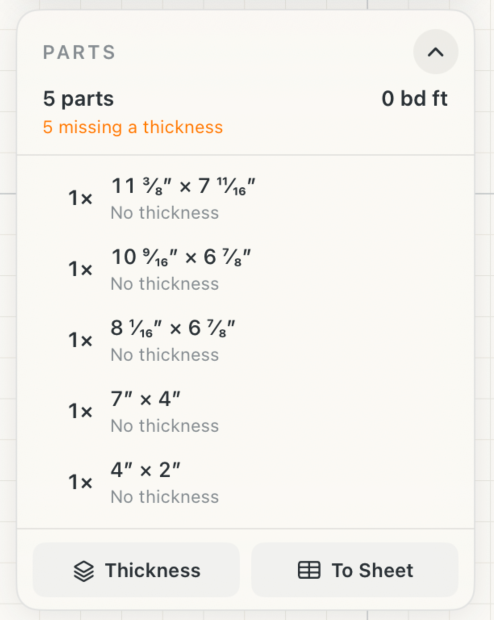 Parts list
How to use
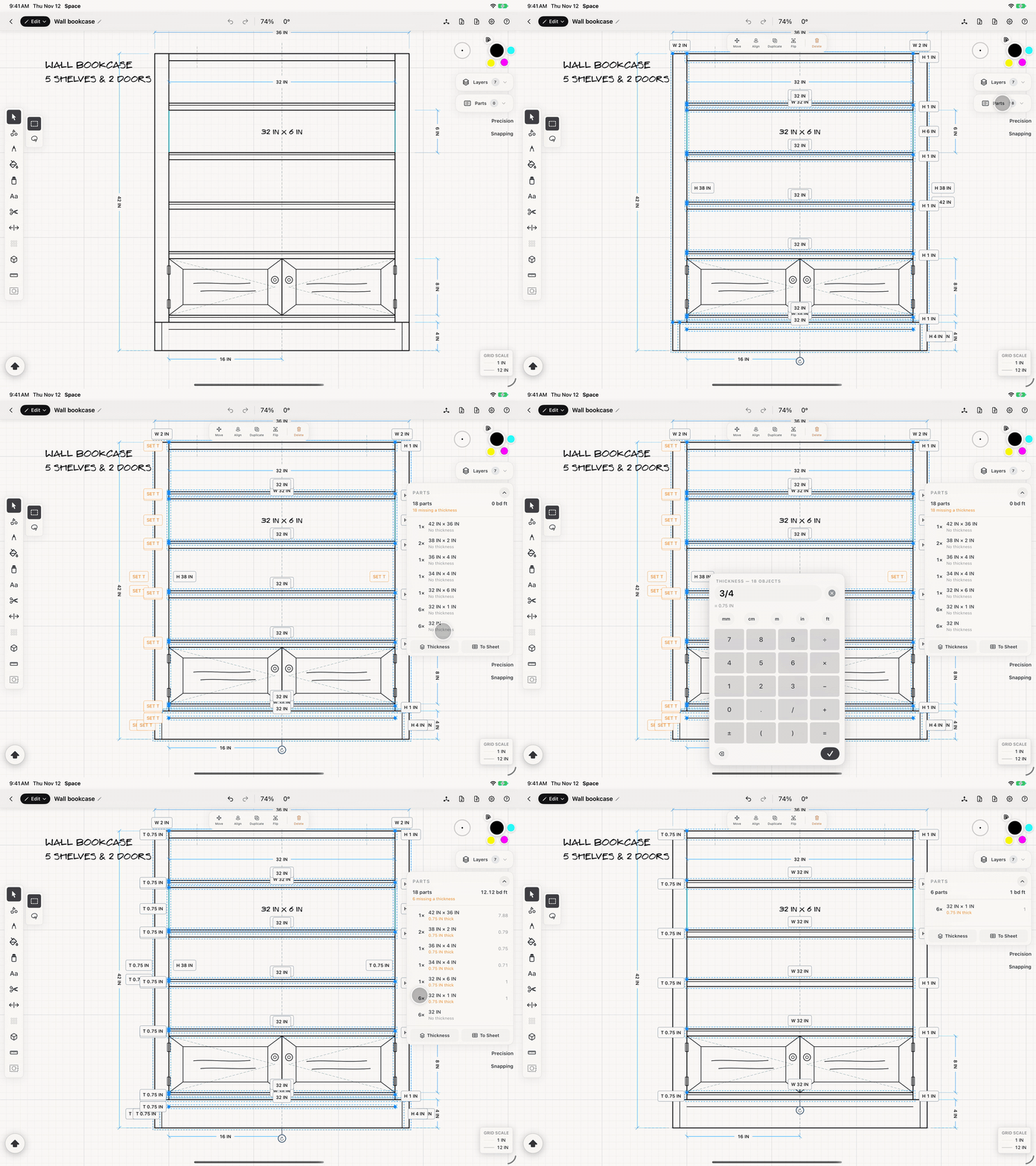
- Select the geometry to count — a cabinet, a door, a shelf — and expand the Parts pill beneath the layer panel.
- Read one row per distinct finished size, with the quantity Space found at that size.
- To pick out every piece of one size, swipe its row right and tap Select on iPad, or right-click it on Mac and choose Select. The selection narrows to just those pieces, ready to move, restyle or give a thickness.
- Check the board-feet total at the foot of the list when ordering stock.
- Send the finished list to Plan to place it on a sheet beside the drawing it describes.
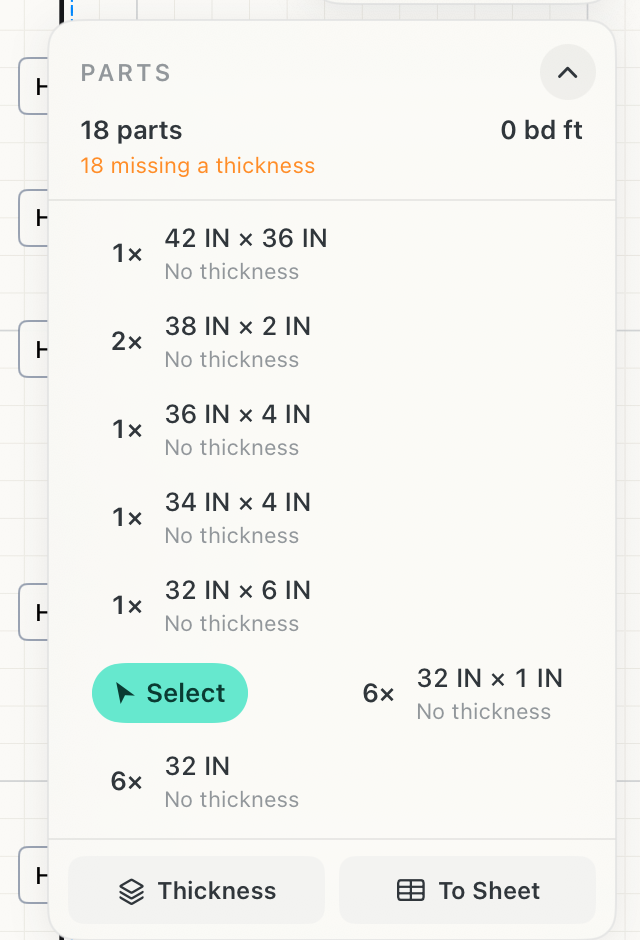
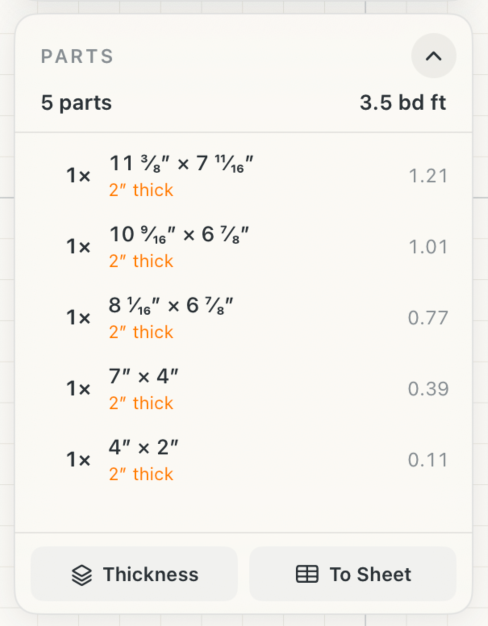 Parts list with thickness
See it in use
Tips
- Select one assembly at a time when you need separate material totals for cabinets, doors, or other components.
- Set thickness correctly before ordering stock so the board-foot total reflects the material you will buy.
- Send the list to Plan when a fabricator or installer needs it beside the drawing.