Layers
Organize a drawing so related content can be found, hidden, and presented together.
Layers separate drawing content so you can hide, reorder, and export it without duplicating geometry. Space has three kinds: drawing layers, guide layers, and measurement layers.
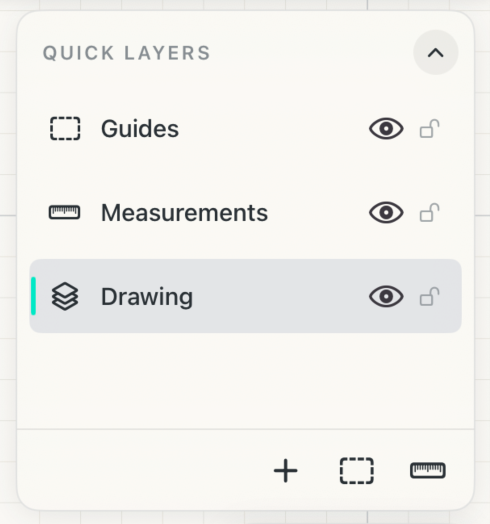
Collapse
Folds the panel down to a single button, which shows how many layers are visible. Tap it to open the panel again.
Selected line indicator
The colored tab indicates the line selected on the canvas is on this layer. If multiple lines are on difference layers, each will show a colored tab.
Active layer
The highlighted layer that new drawing goes into.
Layer kind
The icon shows what the layer holds: drawing, guides, or measurements.
Visibility
Hides or shows the layer. A hidden layer's name dims.
Lock
Locks the layer so nothing on it can be selected or changed.
New drawing layer
Adds a layer for drawing.
New guide layer
Adds a layer for guides.
New measurement layer
Adds a layer for dimensions.
How to use
- Create drawing, guide, or measurement layers with the buttons at the bottom of the panel.
- To rename a layer, double-tap its name on iPad, or right-click it and choose Rename Layer on Mac.
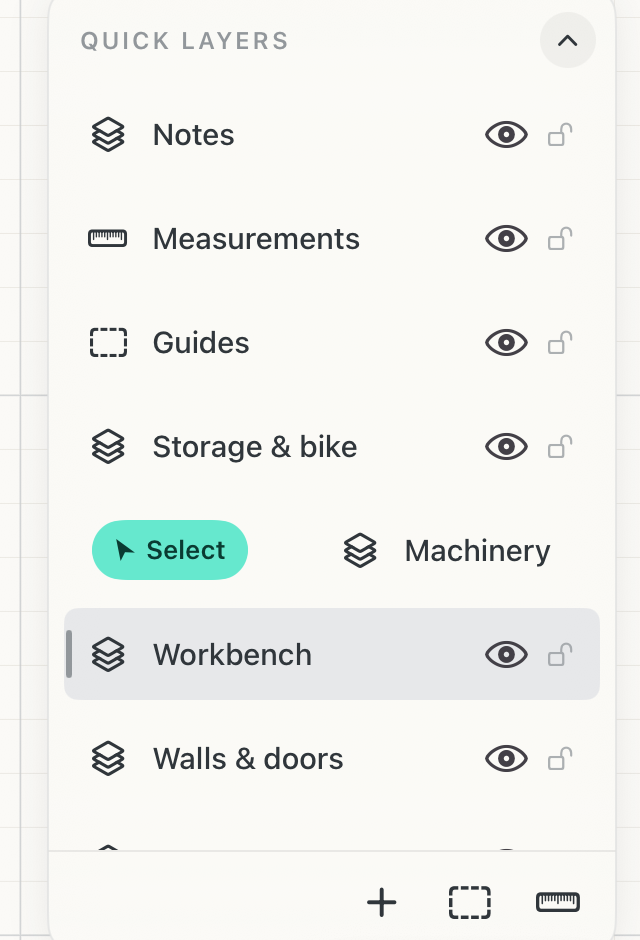
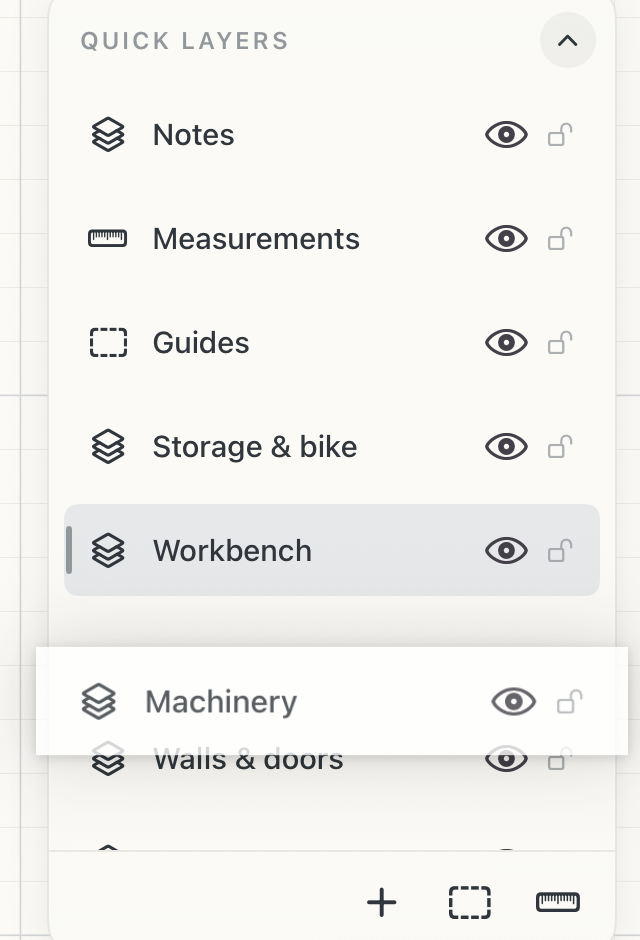
- To reorder, press and hold a layer and drag it on iPad, or click and drag it on Mac. On Mac, a line shows where it will land.
- To select everything on a layer, swipe the layer right and tap Select on iPad, or right-click it and choose Select on Mac.
- Swipe left on iPad to reveal Delete. On Mac it's in the right-click menu.
- Use the eye control to hide a layer. Its name dims to make hidden state clear.
When the column is full
Layers and Parts share the right-hand column with Precision and Snapping. Open both with long lists, and each panel shortens and scrolls rather than pushing anything off the screen, so Precision and Snapping always stay above the grid scale.
Tips
- Use separate layers for existing conditions, proposed work, dimensions, and references.
- Hide layers to compare options or produce a cleaner sheet without deleting work.
- Name layers by purpose so another person can understand the file quickly.