Precision
Control the grid, live size labels, alignment hints, and the units used throughout the drawing.
Precision holds the drawing settings you change most often. On iPad and Mac it's a tab at the foot of the right-hand column, under Parts, with Snapping right below it.
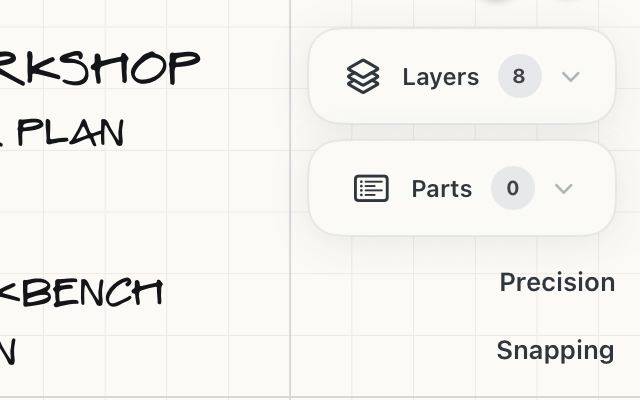
Tap Precision to open its strip beside the column. Tap it again to close it. Only one of Precision and Snapping is open at a time.
An orange dot beside Precision means something inside it is switched off: the grid, Live or Hints. With all three on, the dot goes away. Snapping shows the same dot when any of its switches is off, so you can tell from the tabs alone, without opening either strip, that the drawing isn't in its usual everything-on state.
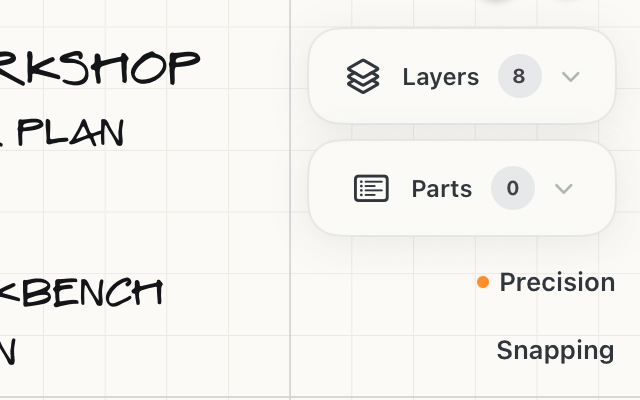
Hold Shift (on the keyboard or the on-screen Shift key) and tap Precision to switch Grid, Live and Hints all off at once. Shift-tap again to switch them all back on. If some are on and some are off, the first Shift-tap switches them all off. The strip doesn't open or close.
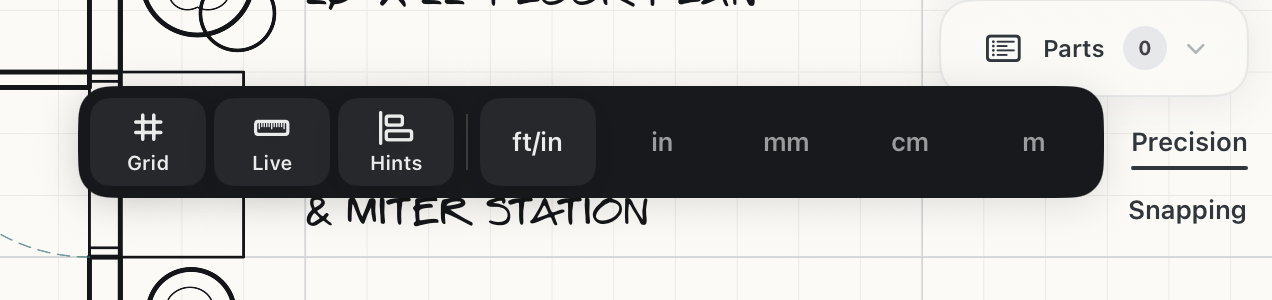
Grid
Shows or hides the adaptive grid. The grid scale in the corner of the canvas reports the minor and major spacing at the current zoom. With the grid hidden, there's no grid to snap to, so Snapping's Grid switch dims.
Live
Shows or hides dimension labels while you draw and on editable geometry. Dimensions made with the Measure tool stay visible either way.
Hints
Shows or hides the orange alignment lines, the gaps beside them, and the dot on a snapped point. Hiding them doesn't stop anything snapping; that's what Snapping is for.
Units
Choose ft/in, in, mm, cm, or m. New values and the dimension keypad use these units. You can always type any unit in the precision editor; this just changes the default.
Tips
- Choose the document units before entering many dimensions so new values use the expected format.
- Keep Live on while sizing and editing objects; turn it off when you want a cleaner presentation view.
- Turn Hints off for a quieter canvas when you're sketching loosely, and back on for layout work.
- If snapping or hints seem to have stopped working, look for the orange dot on the tabs. Shift-tap a tab once or twice to get everything back on.
- Zoom in when you need finer grid increments for detail work.