Setting the scale
Mark one length you know on a photo, and every other size in it can be measured.
A photo on its own has no size. Mark one length you know on it, such as a door width, a tape measure in the shot, or a sheet of plywood, and Field Notes works out every other size on the same face.
Each photo's label
Under every photo is a label that says how it's scaled. Tap it to set the scale for that photo, and only that one.
- Scale not set: nobody has marked a length yet. Measurements over it can't be trusted.
- ≈ Scaled by camera: the camera estimated it. Mark a length to replace the estimate.
- A length: the photo is scaled from that. Tap the photo to see where it was marked.
Mark a known length
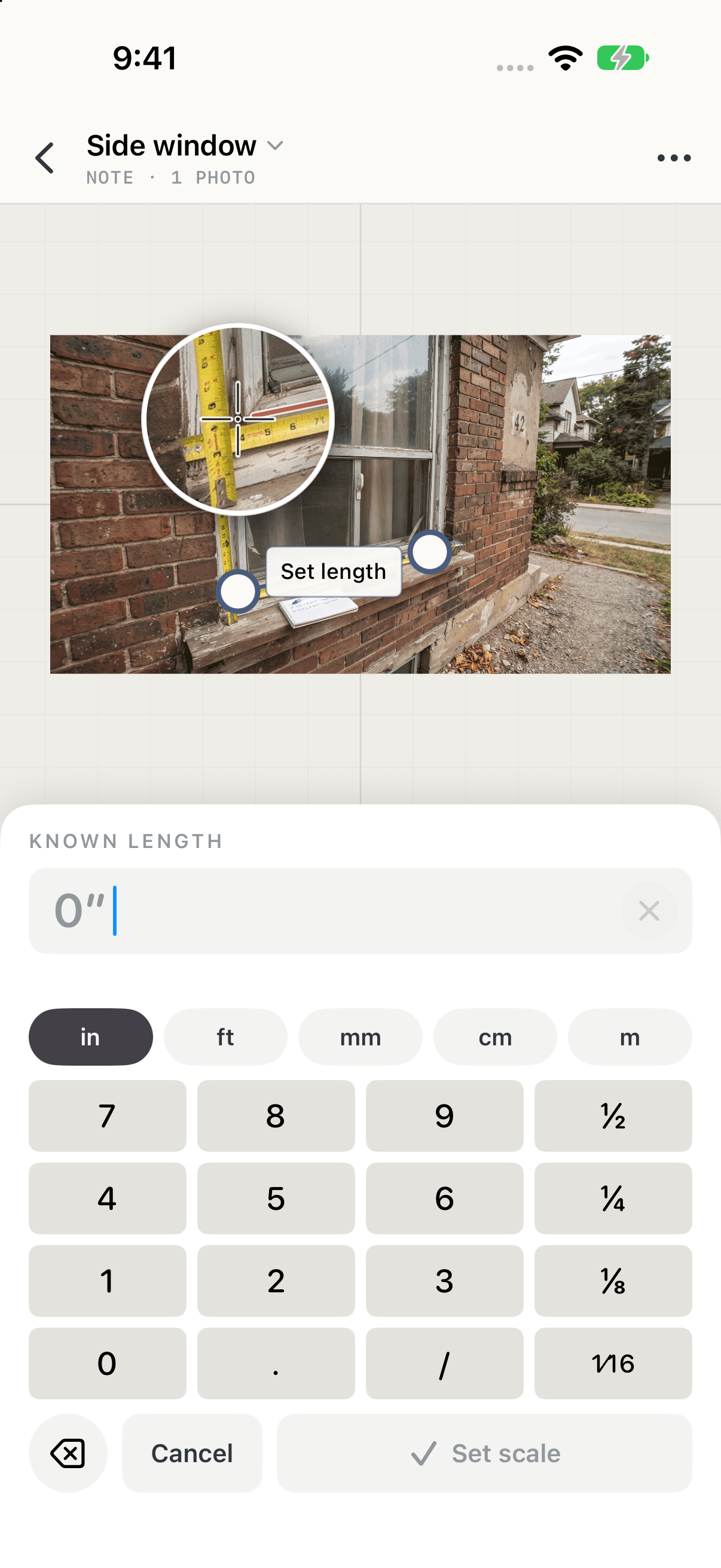
- Tap the photo's label.
- Drag the two ends of the line onto the ends of something you know the length of. A magnifier shows exactly where each end sits.
- Type the real length.
- Tap Set scale.
The keypad
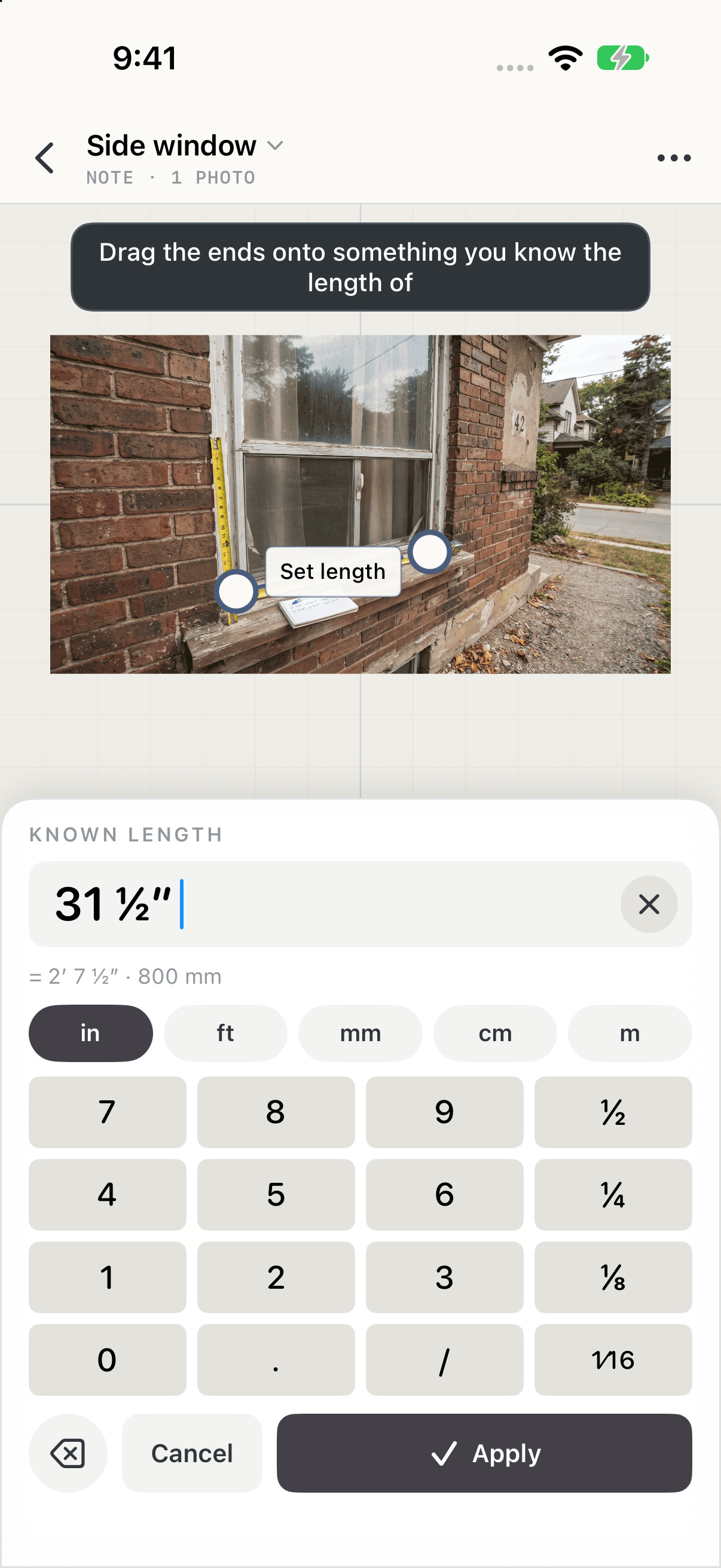
The keypad is made for tape-measure numbers. Type the whole inches, then add fractions with the ½, ¼, ⅛ and 1⁄16 keys. The line under the value converts it as you type. The unit pills switch between feet and inches and metric, and / lets you type any fraction.