Notebook
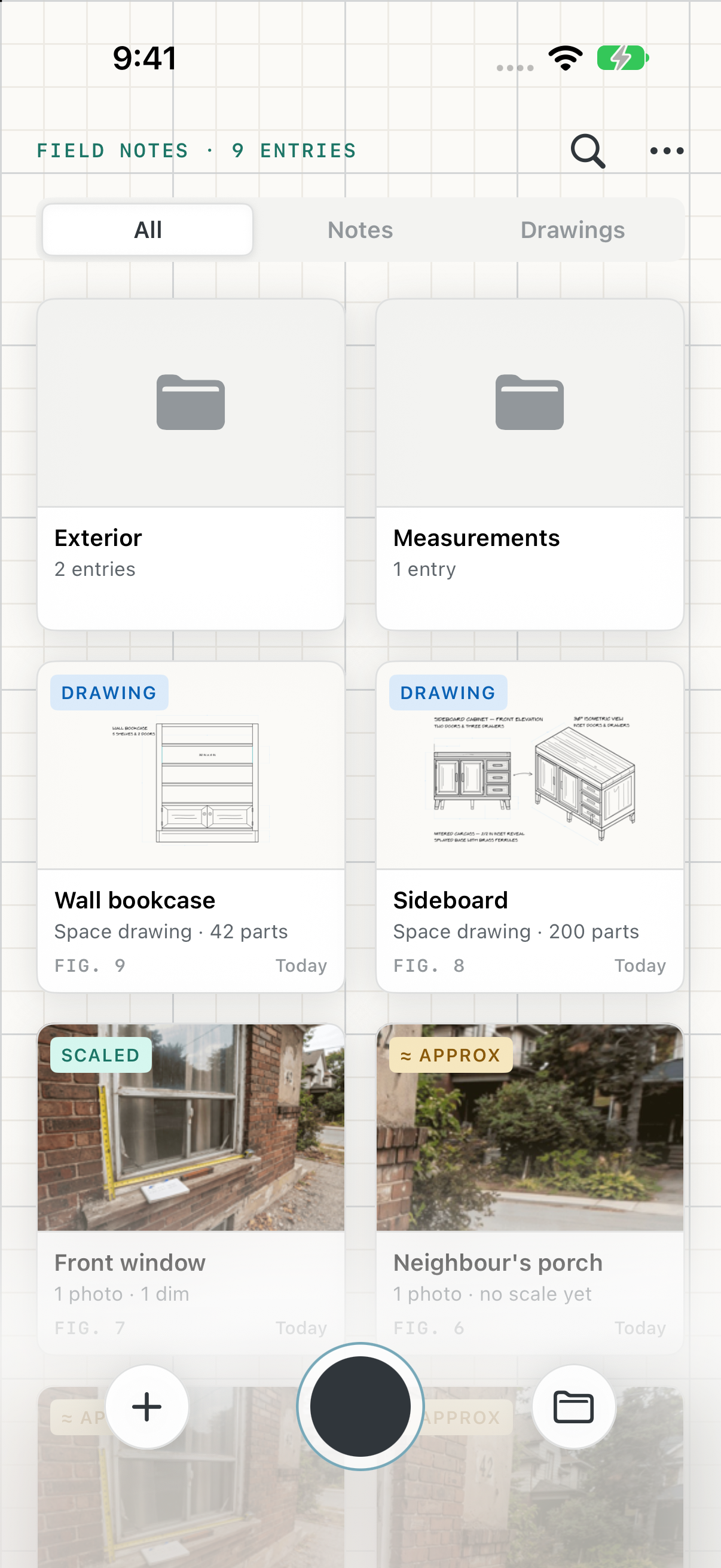
The Field Notes home screen: new notes, the camera, folders, search, and moving notes around.
The notebook is where Field Notes opens. Notes are listed with the most recently changed first, each with a thumbnail of what's in it, alongside your folders.
Folders
Tap a folder to open it. The number is how many notes are inside.
Notes
Tap a note to open it. Press and hold for its menu.
New note
Starts an empty note, ready to draw.
Shutter
Opens the camera. The photos you take become a new note.
Browse
Opens a drawing from Files: a note from somewhere else, or a drawing from iPad or Mac.
Search and More
Search finds notes by name. More has Select, New folder, Help and About, and Feedback.
A note's menu
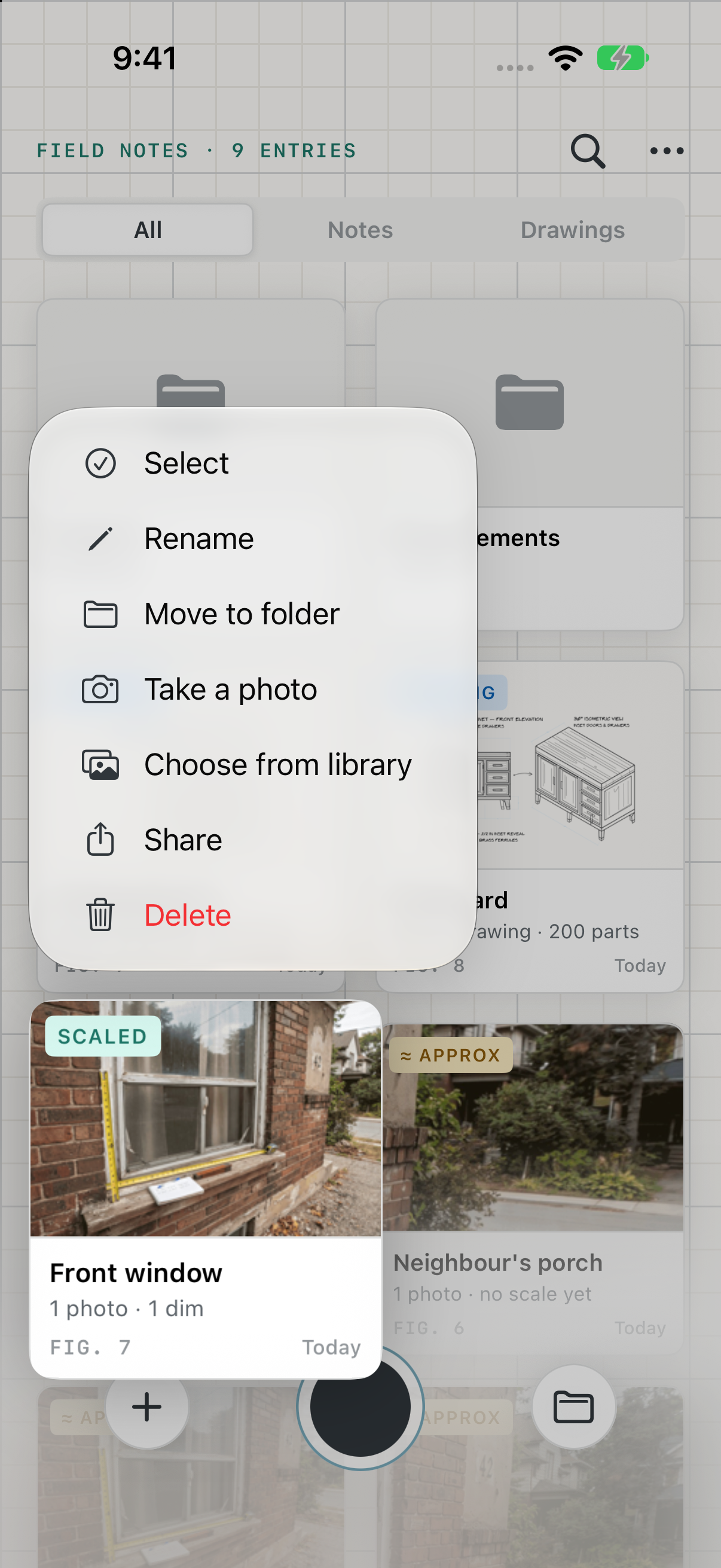
Press and hold a note for:
- Select, to pick several notes at once and move, share or delete them together.
- Rename and Move to folder.
- Take a photo or Choose from library, to add photos to that note without opening it.
- Move to iCloud, for a note still kept only on this iPhone.
- Share and Delete. A delete can be undone from the notebook straight after.
Folders
Choose More › New folder to make one, then move notes into it from their menus. Removing a folder doesn't delete anything: the notes in it go back to the notebook.