Measuring and marking up
The Field Notes tools: Measure, Note, Rectangle, Line and Photo, plus moving things and the canvas gestures.
Open a note to mark it up. The tool strip along the bottom holds everything, in the same order in every note, so a tool is always where your thumb left it.
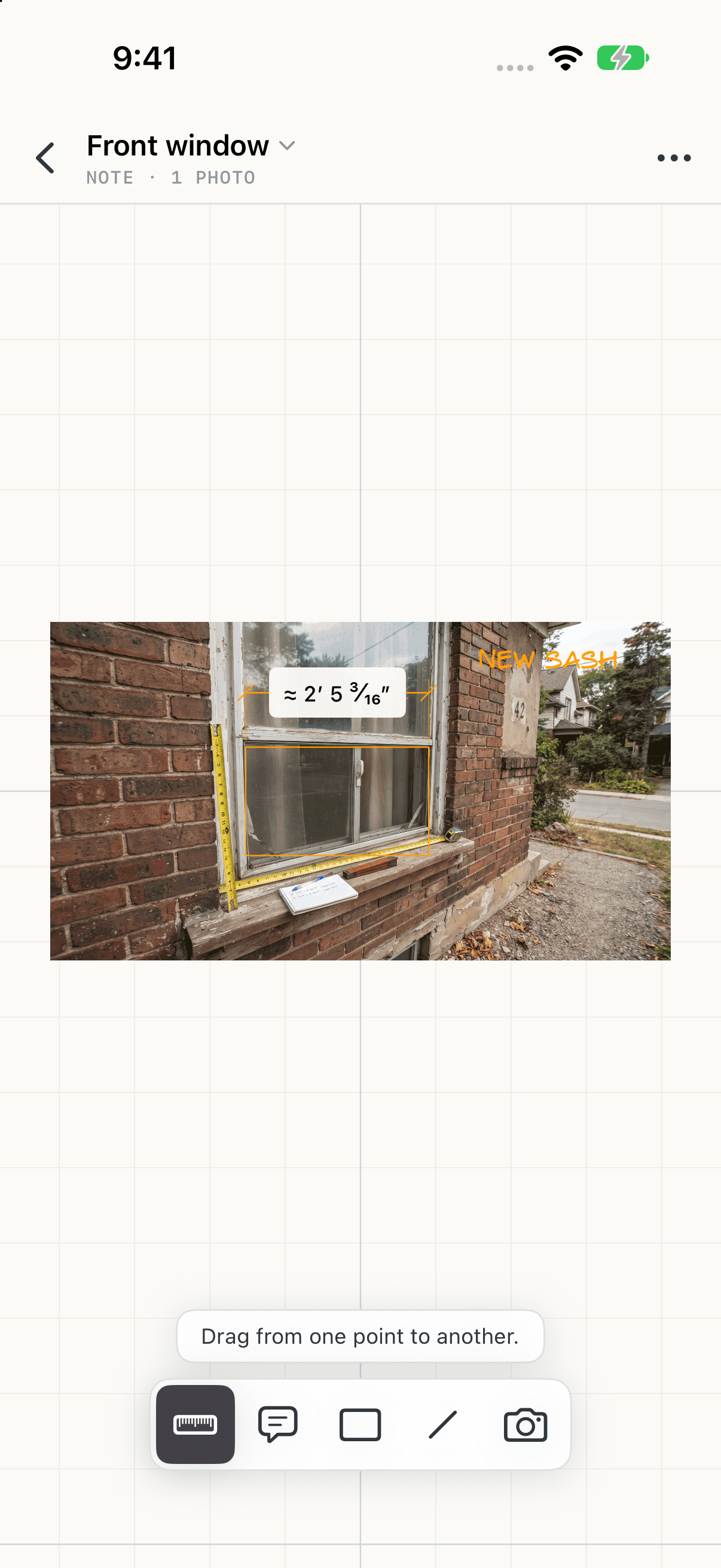
Measure
Drag from one point to another for a dimension.
Note
Tap where the note goes, then type.
Rectangle
Drag out a rectangle. Its width and height show as you draw.
Line
Drag out a line, with its length.
Photo
Take a photo or choose one from the library, and add it to this note.
There's no Select tool. With no tool armed, tap something to pick it and drag to move it. Tap the armed tool again to put it down.
A selection
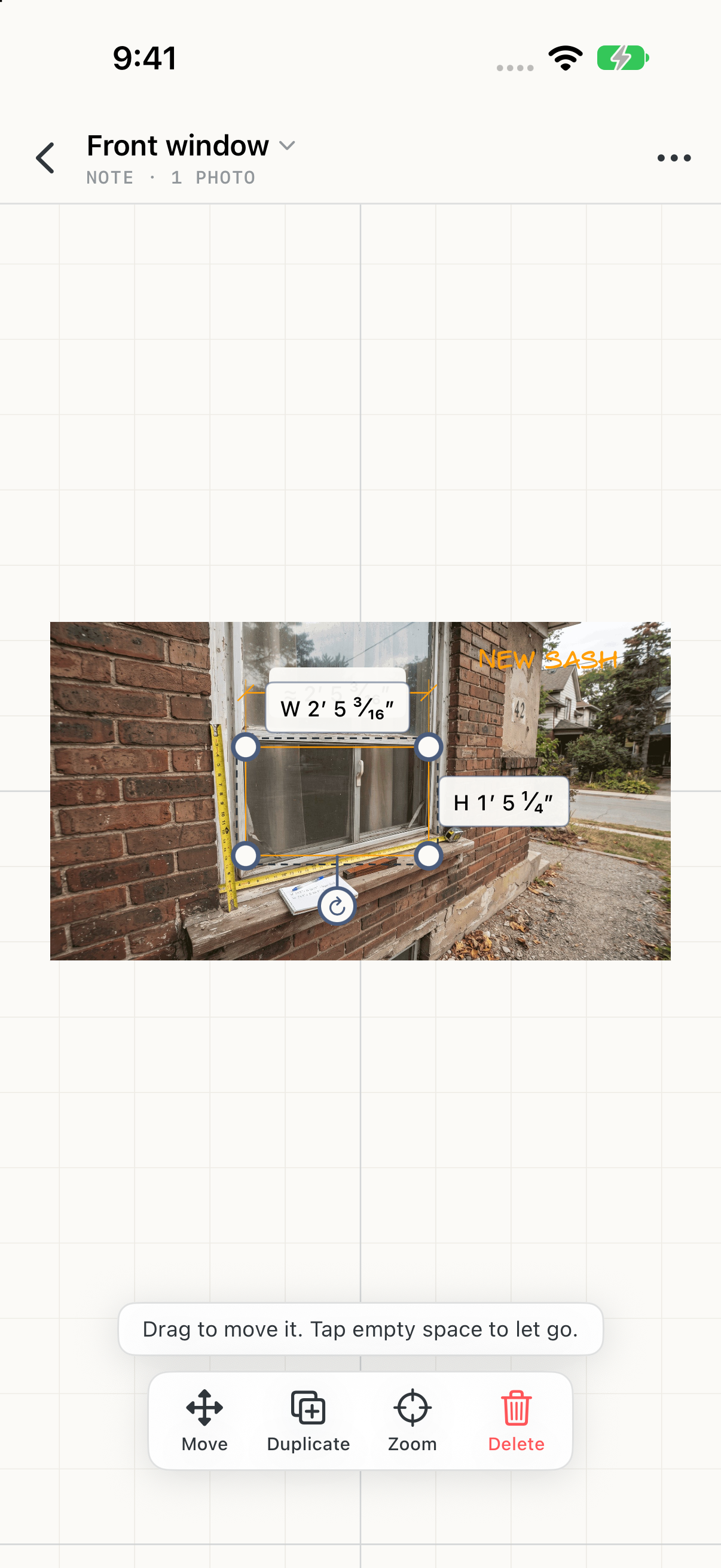
With something picked, the selection bar takes the tool strip's place, with Move, Duplicate, Zoom (to fit it on screen) and Delete. Move moves it by an exact distance: type how far across and how far up, then confirm. Tap empty canvas to let go.
Tap a photo to pick it. Its bar has Set scale (or Edit scale, once it has one) and Delete, for a shot you didn't need.
Gestures
| Gesture | What it does |
|---|---|
| One finger | Draws with the armed tool. With none armed, tap to pick and drag to move. |
| Two fingers | Drag to pan, pinch to zoom, twist to rotate. |
| Two-finger tap | Undo |
| Three-finger tap | Redo |
| Two-finger double tap | Reset the zoom |
| Press and hold | Cut, copy, paste, and zoom to fit |