Place
Project a drawing onto a real surface at true scale, so it can be marked directly.
Place sends the drawing to a projector or AirPlay display at a calibrated physical scale. Use it to trace or mark the drawing on a surface.
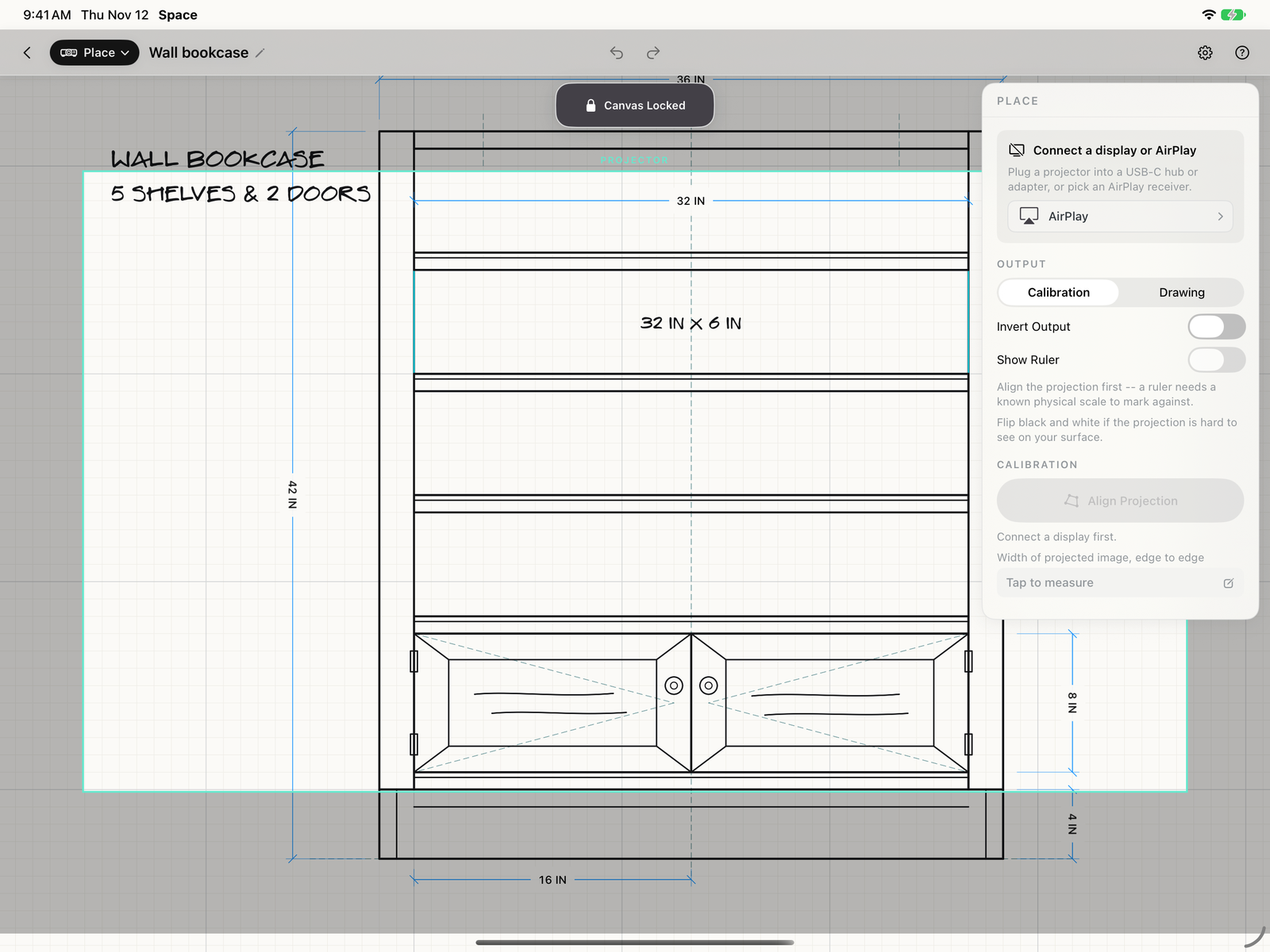 Place in Space
How to use
- Switch to Place and connect a display — a projector on a USB-C hub or adapter, or an AirPlay receiver.
- Leave Output on Calibration, aim the projector, and measure the width of the projected image edge to edge. Enter that width so Space knows the physical scale.
- Use Align Projection to square the image to the surface when the projector is not straight on.
- Switch Output to Drawing to project the work itself. The canvas locks so a stray touch cannot shift what is already aligned.
Tips
- Use Place for full-size templates, wall layouts, lettering, and other work that is easier to mark directly on the surface.
- Invert Output when projecting onto a dark or textured surface.
- Recheck calibration if the projector or receiving surface moves.